Microsoft 365 asks me to sign in again for every email
Modified on Fri, 2 Oct at 3:55 PM
Symptoms
When a scenario sends an email (Send an email, Reply to email, or Forward email), Automatic Email Manager asks you to sign in with Microsoft each time a new email is processed.
Cause
Microsoft 365 only allows sending from the address that is signed in. The sign-in prompt appears again when:
- The SMTP settings of the account don't match the signed-in address, or
- The From field in the action uses a different address, such as an alias.
This is a Microsoft restriction, not a limitation of Automatic Email Manager.
Solution
Step 1: Check the SMTP settings of the account
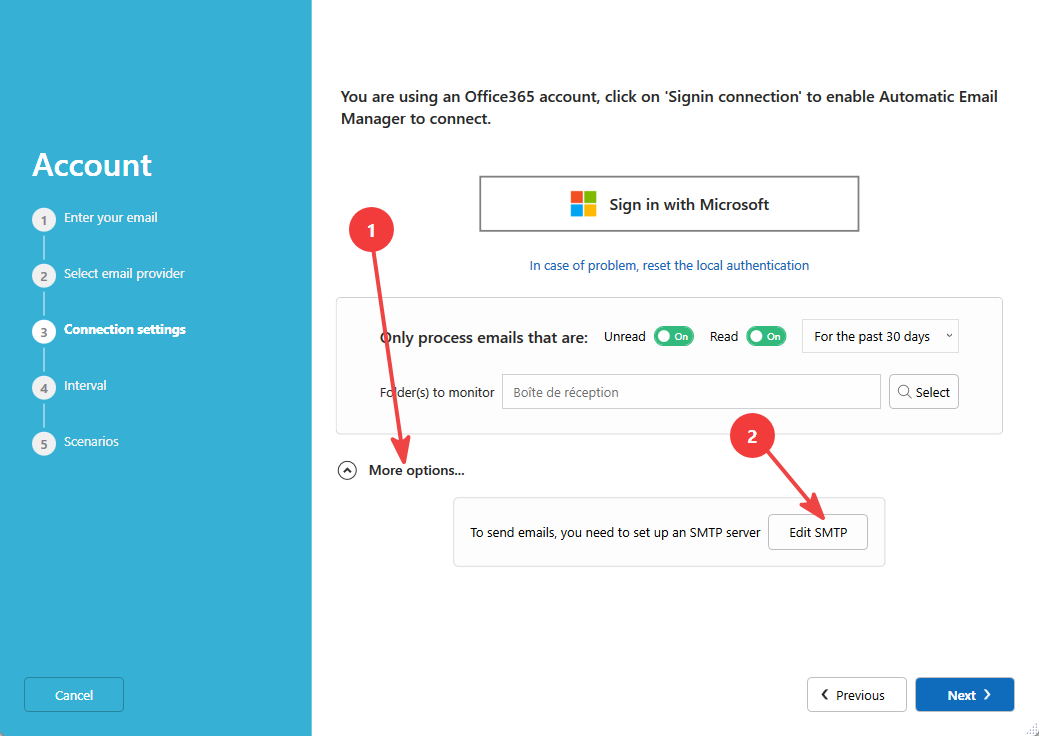
- Edit the account and go to step 3.
- Click More options, then Set SMTP.
Step 2: Check the login address
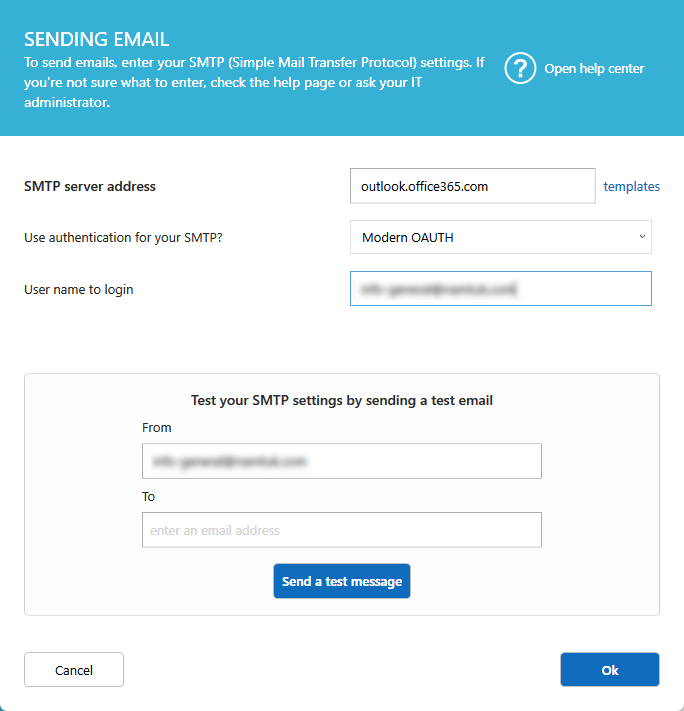
In the Login field, enter:
- Your own address, if you use a regular mailbox (default value)
- The address you use to sign in, if you access a shared mailbox
Click OK to save and close.
Step 3: Check the From field in your action
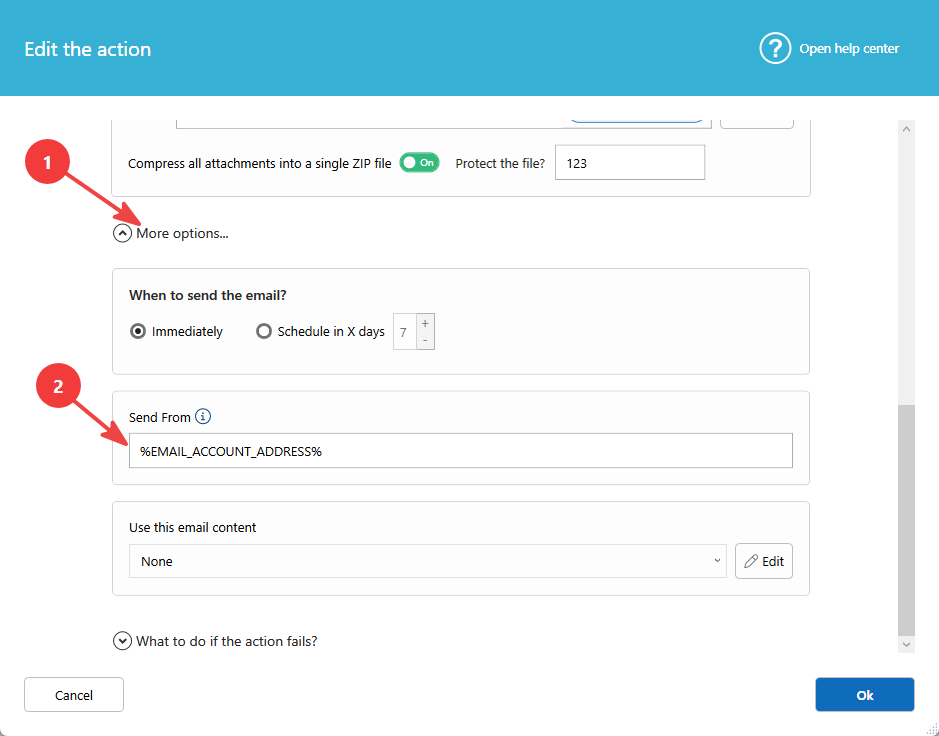
- Open the list of scenarios and edit the action that sends, replies, or forwards.
- In the From (email) field, use one of these:
- The default value
%EMAIL_ACCOUNT_ADDRESS%(recommended) - The exact address of the account (shared or login address)
- The default value
Important: Do not use an alias or a different address. Microsoft 365 does not allow it, and it triggers the sign-in prompt.
Still asked to sign in?
Contact us and tell us which action you use (send, reply, or forward) and whether you access a shared mailbox.
Was this article helpful?
That’s Great!
Thank you for your feedback
Sorry! We couldn't be helpful
Thank you for your feedback
Feedback sent
We appreciate your effort and will try to fix the article