What to do if an action fails
Modified on Tue, 29 Sep at 4:16 PM
Actions can fail for many reasons: a network drive is offline, a printer is unavailable, or a server doesn't respond. For each action, you decide what happens next.
Whatever you choose, the failure is always logged and shown as an alert in Automatic Email Manager.
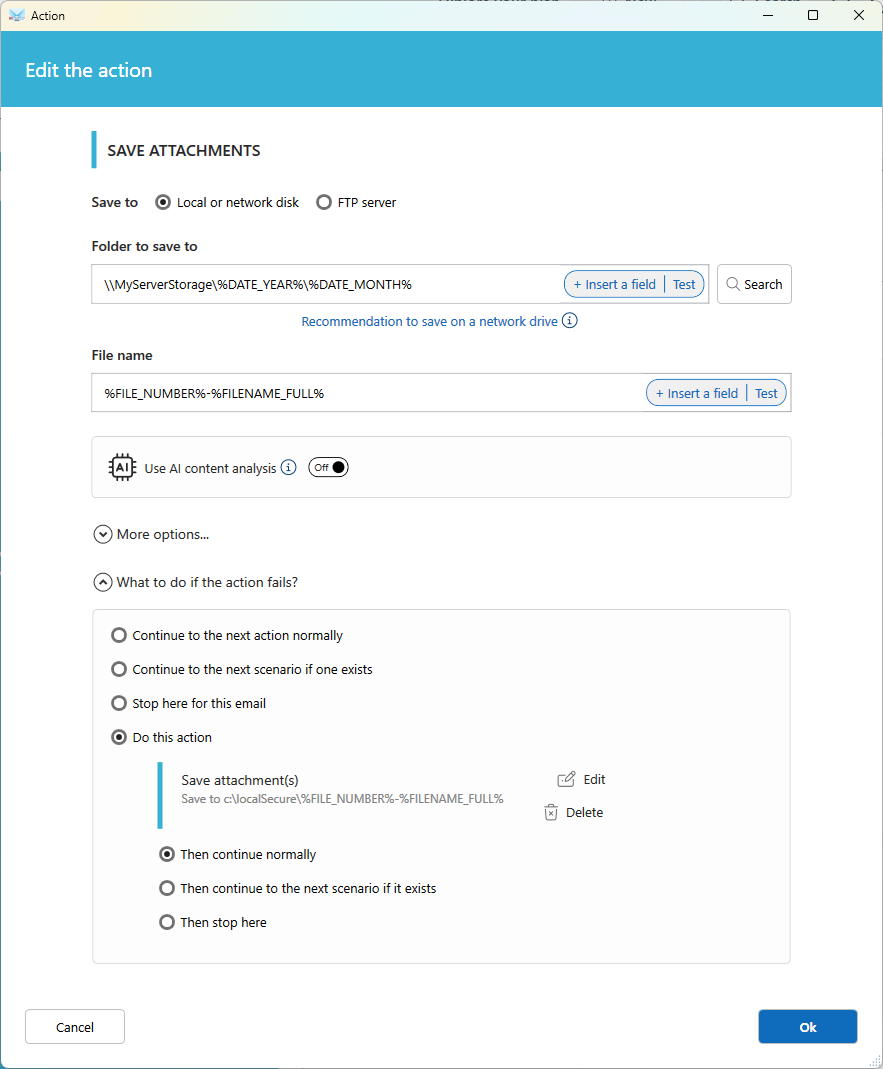
Open What to do if the action fails? at the bottom of any action to see the options.
Options
Continue to the next action normally (default)
The scenario keeps going with the next action.
Continue to the next scenario if one exists
The remaining actions of the current scenario are skipped. Automatic Email Manager moves to the next scenario. If there is none, it moves to the next email.
Stop here for this email
All remaining actions are skipped for this email. Automatic Email Manager moves to the next email.
Do this action
Choose a new action instead. Click Edit to change it, or Delete to remove it. Then choose what happens next:
- Then continue normally
- Then continue to the next scenario if it exists
- Then stop here
Example
You save attachments to a network drive. If the drive is offline, the action fails.
- Under What to do if the action fails?, select Do this action.
- Choose Save attachment(s) and set a local folder, for example
C:\localSecure. - Select Then continue normally.
If the network drive is unavailable, your attachments are saved locally and the scenario continues.
Was this article helpful?
That’s Great!
Thank you for your feedback
Sorry! We couldn't be helpful
Thank you for your feedback
Feedback sent
We appreciate your effort and will try to fix the article