Action: Run an external program or script
Modified on Tue, 29 Sep at 4:18 PM
Run a program or script every time a new email arrives. Customers use it daily to send email data to ERP, CRM, and production systems.
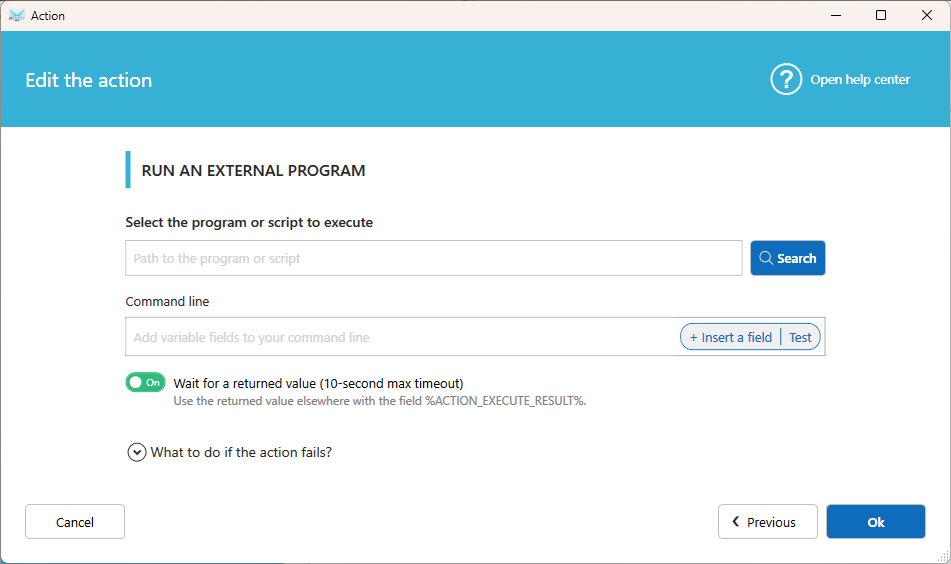
Settings
Select the program or script to execute
Enter the path, or click Search to browse for it. Any executable works: .exe, .bat, .cmd, .ps1, .vbs, and so on.
Command line
Add the arguments to pass to your program.
- Click Insert a field to add email data such as sender, subject, or file path.
- Put quotes around each field, and separate arguments with spaces.
- Click Test to check the command line with an existing email.
Wait for a returned value (10-second max timeout)
- On: Automatic Email Manager waits for your program/script to finish, then stores the value it returns in the field
%ACTION_EXECUTE_RESULT%. You can use this field in any following action, such as a file name, an email subject, or a notification message. - Off: The program is started and Automatic Email Manager moves on immediately to the next action.
If the program takes longer than 10 seconds, the action stops waiting and no value is returned.
What to do if the action fails?
Choose to continue, stop, or run another action. Learn more about Fail Action.
Examples
Write batch scripts in Notepad and save them with the .bat extension.
Send data to a web service (for example, an SMS provider):
@echo off set "URL=http://www.my-sms-provider.com/send?username=%1&password=%2&number=%3&text=%4" curl "%URL%"
Send the email file to an ERP program:
@echo off start MyErpProgram.exe "file=%1"Return a value to use in the next actions:
@echo off MyErpProgram.exe /import "%1"Then, in the next action (for example, Save email to disk), insert %ACTION_EXECUTE_RESULT% in the file name to include the returned value.
Not familiar with scripting? Contact us, or ask an AI assistant to write the script for you.
Was this article helpful?
That’s Great!
Thank you for your feedback
Sorry! We couldn't be helpful
Thank you for your feedback
Feedback sent
We appreciate your effort and will try to fix the article