Explain me: File types management
Modified on Tue, 29 Sep at 5:35 PM
Automatic Email Manager can print, save, merge, and forward email attachments. Attachments are also a common way to spread viruses and ransomware. To protect you, only approved file types are processed.
The software comes with a default list of allowed and blocked file extensions. You can add new extensions and turn each one on or off.
To open the list: go to Settings > Email attachment > File types management.
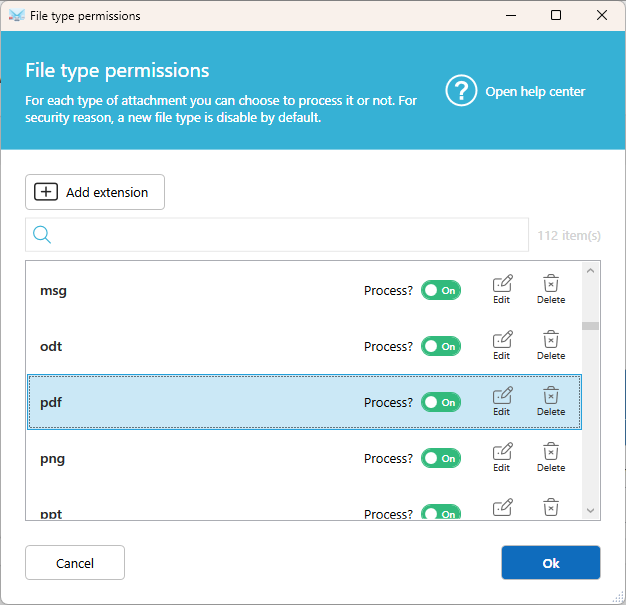
When an unknown file type arrives
Automatic Email Manager does not process it. The file type is added to a list of new file types, and you are notified in the application. Review it, then choose whether to process it or not.
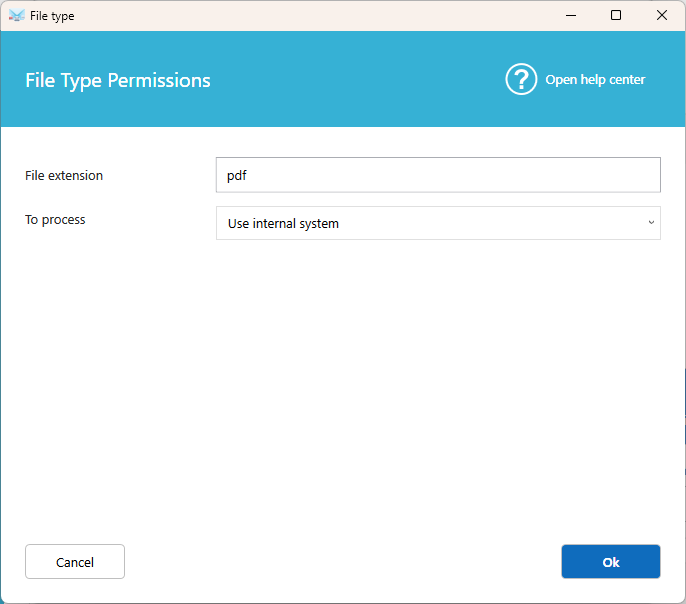
Edit a file type
File extension
Enter the extension without the dot. For example, xls, not .xls.
To process
Turn this on to allow files of this type. Turn it off to block them.
How to print it
- Use internal system: Automatic Email Manager handles the file itself. This applies to PDF, EML, Word, and other common formats.
- Use default application: The application installed on your computer for this file type opens and prints it. For example, your CAD software for a
.dxffile. - Use specific application: Choose a program and set its command line. Use the variables
%FILE%and%PRINTER%. Check the program's documentation for its command line options.
Was this article helpful?
That’s Great!
Thank you for your feedback
Sorry! We couldn't be helpful
Thank you for your feedback
Feedback sent
We appreciate your effort and will try to fix the article