List of available fields
Modified on Thu, 1 Oct at 3:17 PM
Fields let you insert email information, like the sender, the subject, or the date, into a file name, a folder path, a stamp, a template, and more. When the action runs, each field is replaced by the real value from the email.
Insert a field
- Click in the box where you want to use a field, such as Folder, File name, or a stamp text.
- Click Insert a field.
- Select a field from the list.
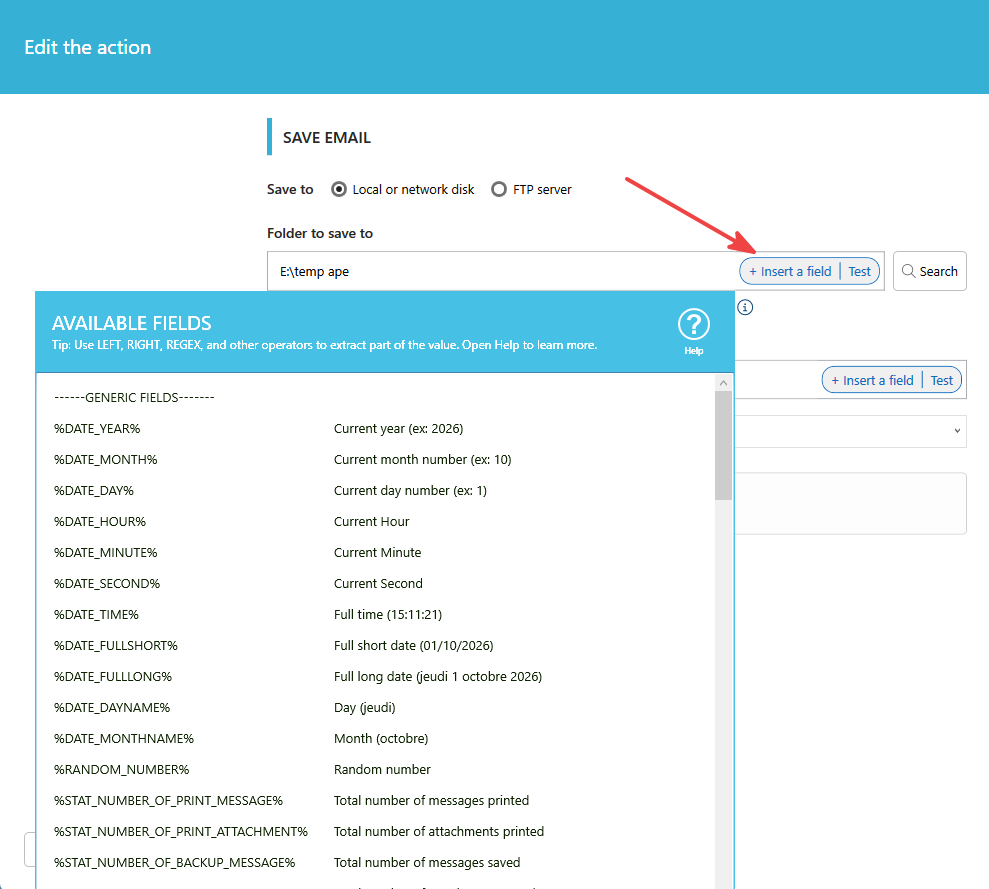
The list adapts to where you are. The fields available for a file name aren't always the same as for a template or a stamp, and they depend on the action (print, save to disk, and more). Only the fields that make sense for your current action are shown.
Tips
- To keep only part of a field, for example the first 10 characters, use field functions such as LEFT or RIGHT.
- Use a unique field in your file names, such as the date and time, to avoid overwriting existing files.
Related articles
- Use fields functions to extract part of your data
Was this article helpful?
That’s Great!
Thank you for your feedback
Sorry! We couldn't be helpful
Thank you for your feedback
Feedback sent
We appreciate your effort and will try to fix the article