Action: Send a notification to your phone
Modified on Thu, 1 Oct at 4:15 PM
Need an instant alert when a specific email arrives, like an urgent alarm, a report, or a new order? Automatic Email Manager can send a push notification to your phone, tablet, or computer using Pushover, a reliable third-party notification service.
Pushover works on Android, iPhone, iPad, and desktop browsers. See pushover.net for more details.
In this article
- How it works
- Cost
- Set up the action
How it works
- Install the Pushover app on your Android, iPhone, or iPad, or register your desktop browser.
- Open the app. It guides you through creating a Pushover account and registering your device.
- Pushover emails you a User Key. You can always find it on your Pushover dashboard. This key allows Automatic Email Manager to send notifications to your devices.
- Copy your User Key into Automatic Email Manager. Notifications start right away.
Cost
- Sending notifications from Automatic Email Manager is free.
- The Pushover app is a one-time purchase of $5 USD per platform (iPhone/iPad, Android, or Desktop) where you want to receive notifications.
- There is no subscription.
- You can try Pushover free for 30 days.
Setup takes less than 5 minutes.
Set up the action
Step 1: Create or edit a scenario
In the left menu, click Scenarios. Select an existing scenario and click Edit, or click New scenario.
Step 2: Add the notification action
Click Add action, then select Send notification, then Send a notification to your phone with Pushover.
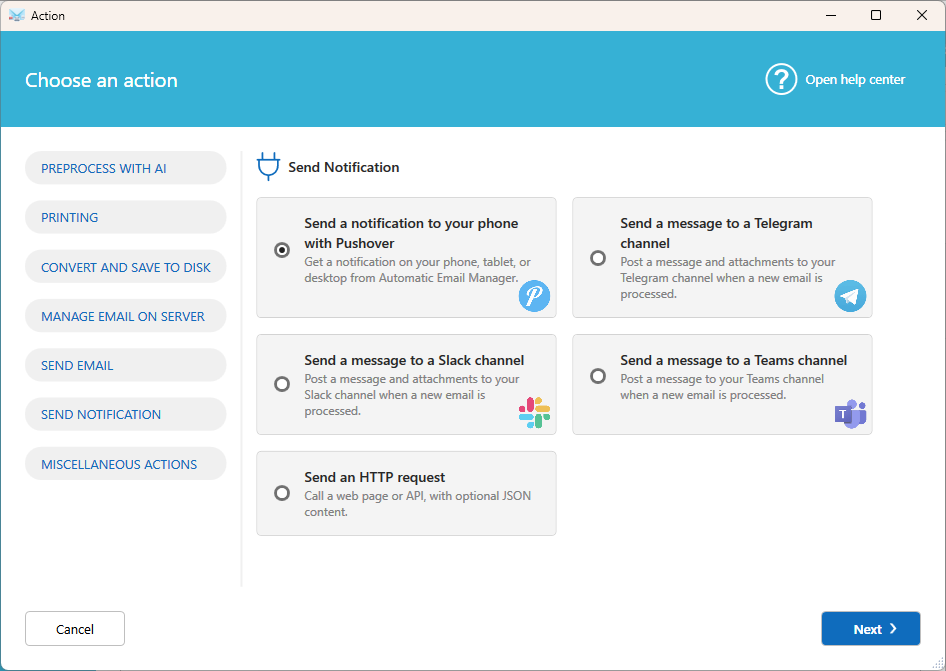
Step 3: Enter your Pushover settings
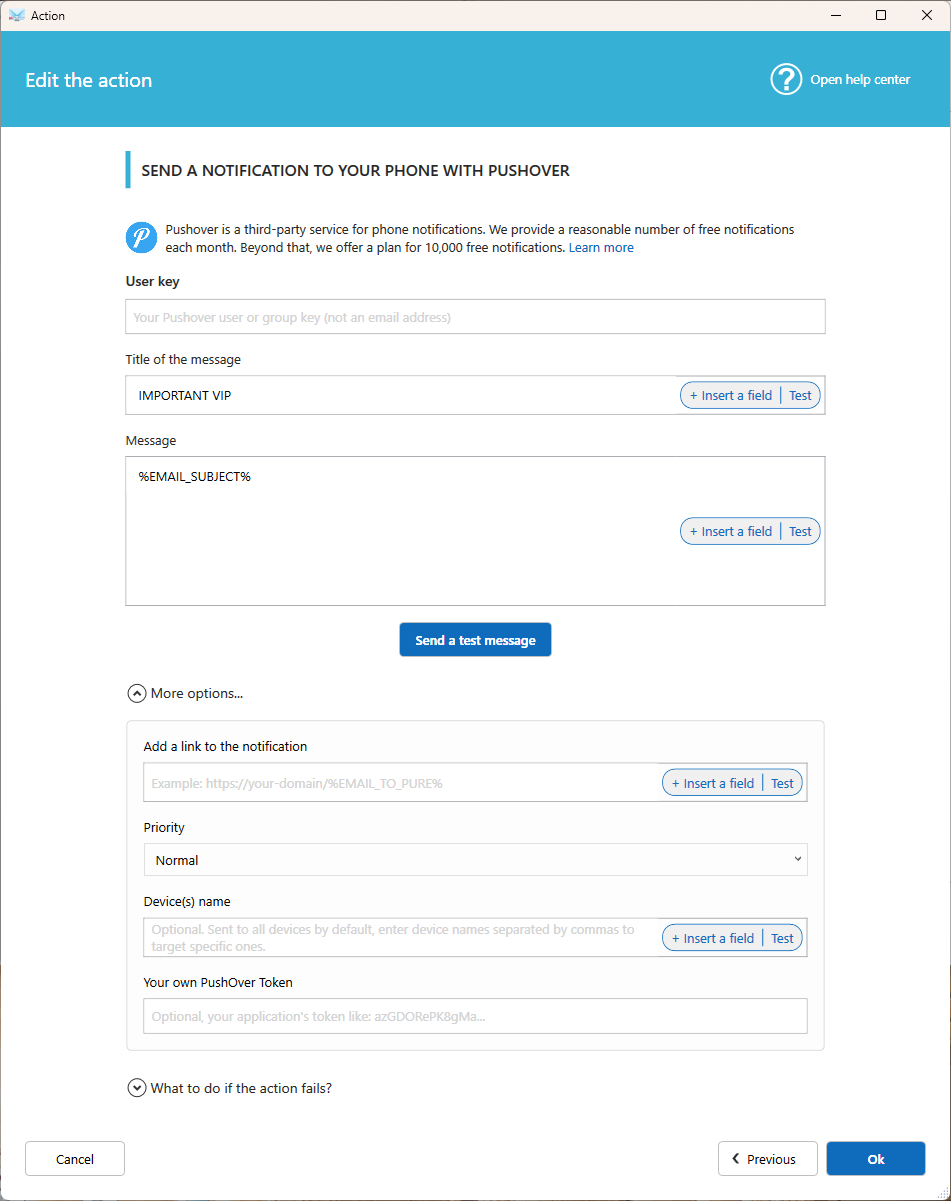
Main settings
- User: Your Pushover User Key, found on your Pushover dashboard.
- Title: The title of the notification. Click Insert a Field to insert email data, such as the sender or the subject.
- Message: The body of the notification.
- Send a test message: Sends a test notification to your devices, to check that your User Key works.

More options
- Add a link in notification: Add a link at the bottom of the notification. Enter the full URL.
- Priority: Controls how the notification is displayed on your device.
- Device name: If you have several devices in your Pushover account, enter the name of the one that should receive the notification. Leave it empty to notify all your devices.
- Your own token: If you send a lot of notifications, use your own Pushover token to get up to 10,000 free notifications per month. Contact us for more information.
Privacy: Automatic Email Manager doesn't receive or read your notifications. They are delivered by Pushover.
Was this article helpful?
That’s Great!
Thank you for your feedback
Sorry! We couldn't be helpful
Thank you for your feedback
Feedback sent
We appreciate your effort and will try to fix the article