Send a message to linking emails with Telegram Messenger
Modified on Thu, 1 Oct at 4:38 PM
Receive important emails and their attachments directly in Telegram. Each message can include the subject, the sender, the email body, and the attached files.
Important: We don't provide technical support for Telegram. If you have a problem with Telegram itself, contact Telegram support.
Setup takes three steps.
Step 1: Create a Telegram bot
A bot is the account that posts the messages in your channel. A simple one is enough.
- Open Telegram and search for @BotFather. Select the official one.

- Click Start, then type
/newbot. - BotFather asks for a name and a username for your bot. Enter them.
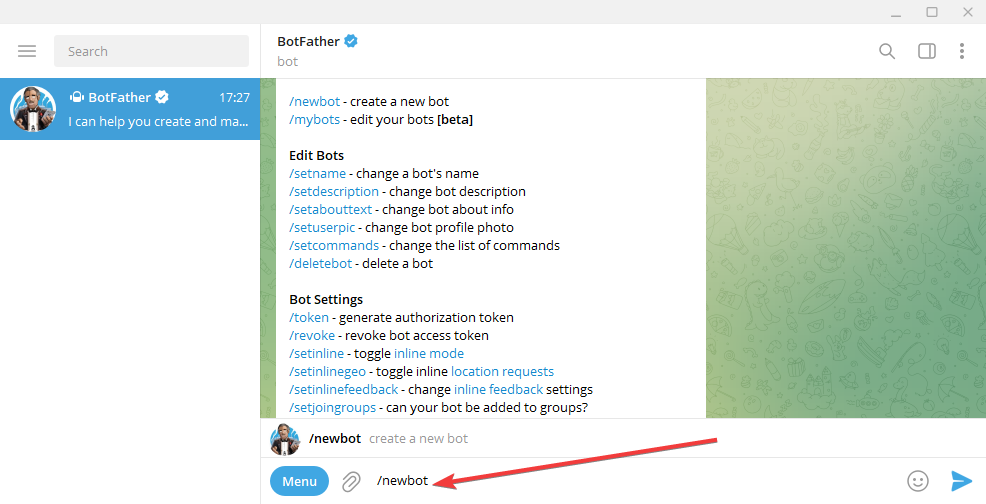

- Copy the token displayed and keep it safe. You'll need it in Step 3.
Your bot is created.
Step 2: Add the bot to your channel and get the Channel ID
Add the bot
- Create a channel, or open an existing one.
- Click the channel name to open the channel info.

- Click + to add a member, search for your bot, and select it.

- Note: Only the channel creator can add a bot.
- Get the Channel ID
For a private channel, Automatic Email Manager needs the numeric ID, not the channel name.
- Open the channel in Telegram.
- Right-click a message and select Copy link.
- Paste the link in Notepad. It looks like this:
https://t.me/c/1579708123/12 - Take the number after
/c/:1579708123 - Add
-100in front of it. The Channel ID is-1001579708123.

Sorry it is not as simple as it should be, but it is a Telegram procedure...
- Perfect! You have completed the setup of your first Telegram Bot. If you encounter any issues, please don't hesitate to contact us and clearly explain at which step you are facing difficulties: Contact us here
Step 3: Add the action in Automatic Email Manager
- In the left menu, click Scenarios. Edit an existing scenario or click New scenario.
- Click Add action, then select Send notification, then Send a message to a Telegram channel.
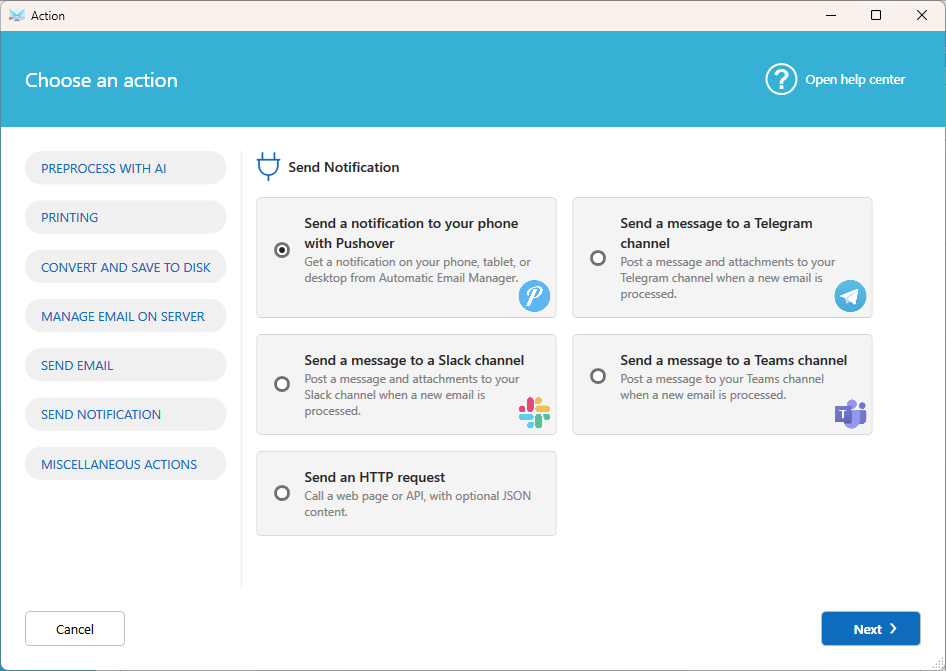
- Fill in the settings:
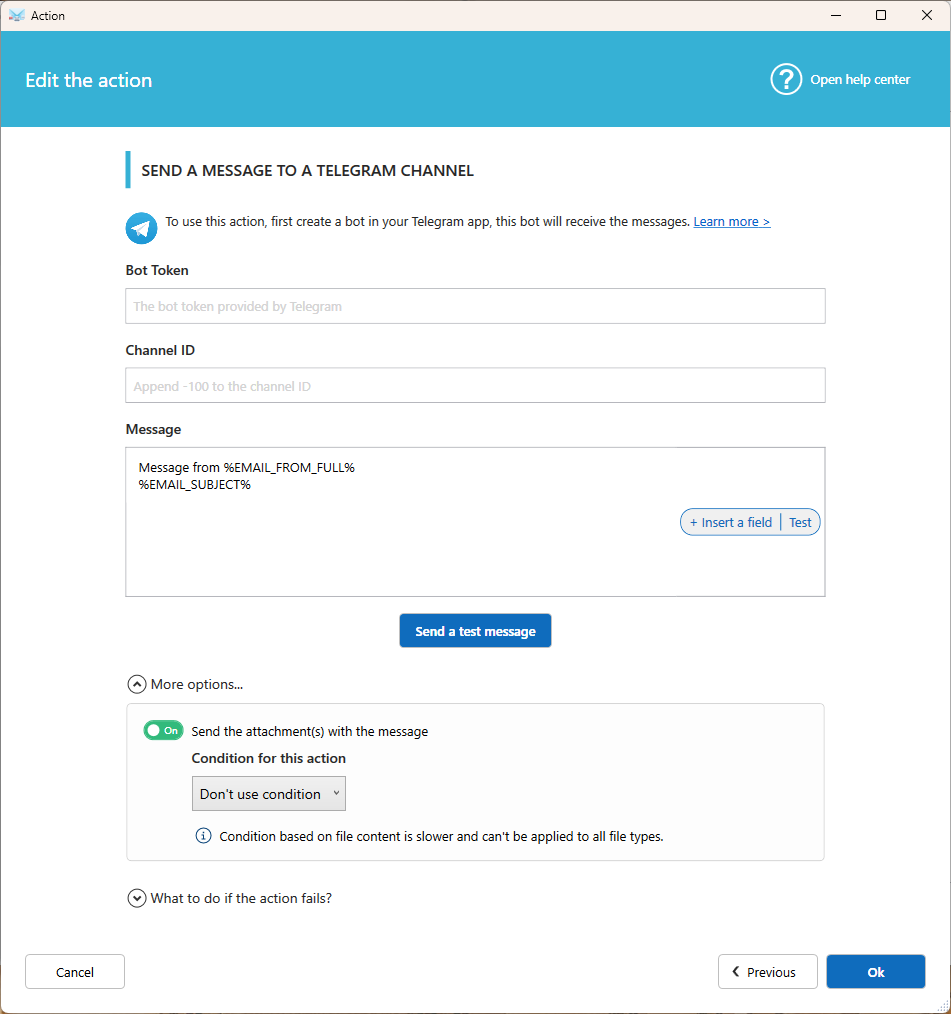
- Bot token: The token you copied from BotFather.
- Channel Id: The ID from Step 2, for example
-1001579708123. Don't use the channel name (@MyChannel). - Message: The text to post. Click Fields to insert the subject, the sender, the email body, or the list of attachments.
- Send the attachment(s) with the message: Turn this on to post the attached files in the channel
- Click Ok to save the action.
Tip: To avoid posting too many files, add a condition to send only specific attachments, for example only
.pdffiles.
Good to know
Telegram limits bots to 20 messages per minute. If you process a lot of emails or attachments at once, some messages may be delayed. See the Telegram bot FAQ for details.
Need help? Tell us at which step you're stuck and we'll help: Contact us.
Related articles
- Send a message to a Slack channel
- Send a message to a Teams channel
Was this article helpful?
That’s Great!
Thank you for your feedback
Sorry! We couldn't be helpful
Thank you for your feedback
Feedback sent
We appreciate your effort and will try to fix the article