Vary your automatic emails with Spintax
Modified on Thu, 1 Oct at 5:32 PM
Spintax lets you write one email template that produces slightly different messages each time. Automatic Email Manager picks one option at random from a list of alternatives you define. Your automatic emails sound less repetitive and more natural.
Want to know more? See this definition of Spintax.
Step 1: Turn on Spintax
- Open Options, then Advanced options.
- Turn on Use spintax.
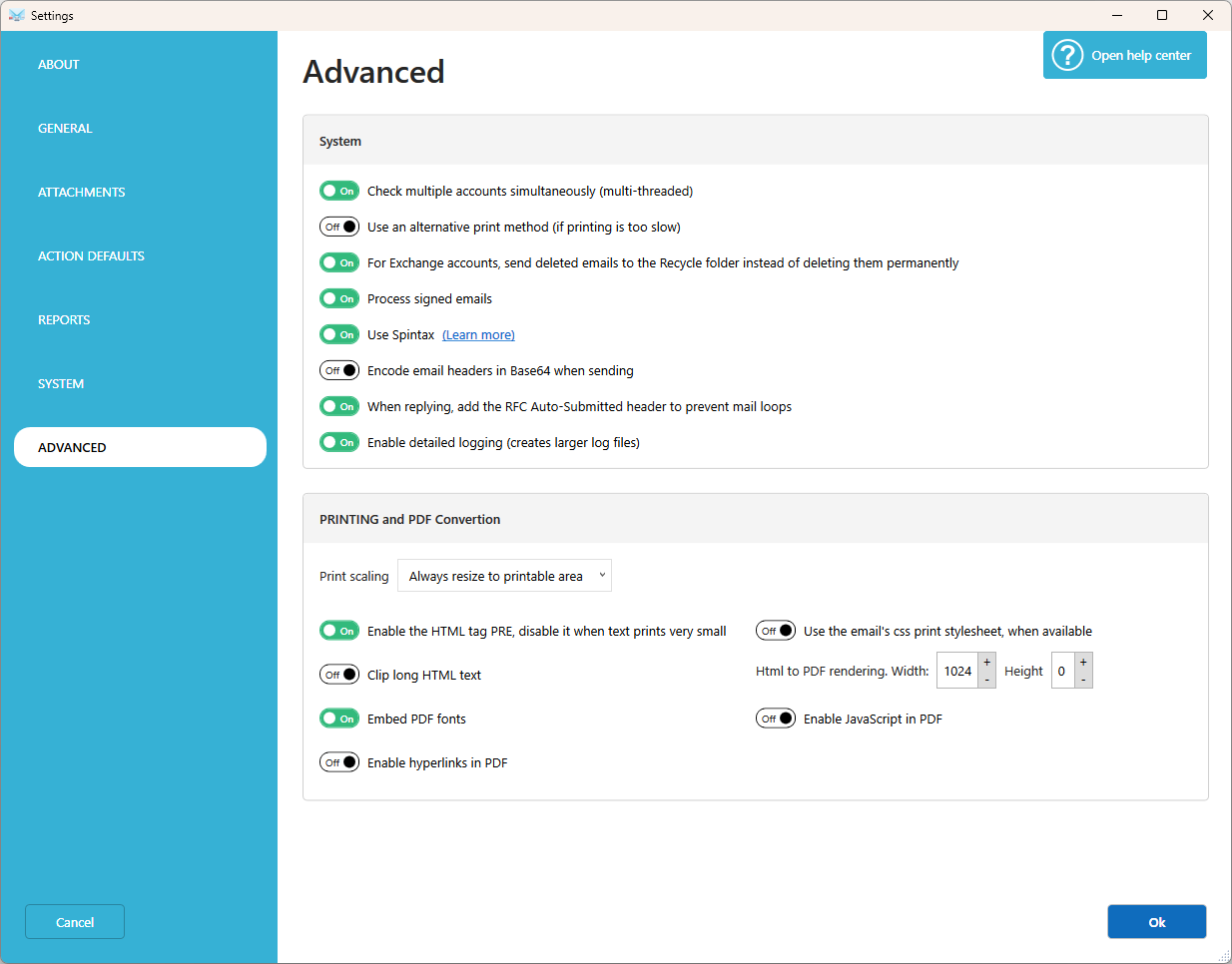
Once enabled, the Send an email, Reply to email, and Forward email actions process every Spintax found in your email template.
Step 2: Add Spintax to your template
- Edit the action (send, reply, or forward).
- Open the email template in Notepad or any HTML editor.
- Write your alternatives between curly braces
{ }, separated by a pipe|.

Each time an email is sent, one of the three words is chosen at random.
Example
Template:
{Hello|Hi|Dear} {customer|client},
{Thank you for|Thanks for} your order. We {will ship|are shipping} it {today|within 24 hours}.
{Best regards|Kind regards|Regards}, The support team
Possible results:
Hi client,
Thanks for your order. We are shipping it today.
Kind regards,
The support team
Dear customer,
Thank you for your order. We will ship it within 24 hours.
Best regards,
The support team
Tips
- Each group must have at least two options, separated by
|. - You can combine Spintax with email fields, for example
{Hello|Hi} %SENDER_NAME%. - Keep the meaning identical in all options so every version stays accurate.
- Spintax is applied only when Use spintax is turned on. Otherwise, the braces are printed as they are.
Related articles
- Action: Send an email
Was this article helpful?
That’s Great!
Thank you for your feedback
Sorry! We couldn't be helpful
Thank you for your feedback
Feedback sent
We appreciate your effort and will try to fix the article