Set up your SMTP to send emails
Modified on Fri, 2 Oct at 2:04 PM
To send, reply to, or forward an email, or to receive a report, Automatic Email Manager needs the SMTP (Simple Mail Transfer Protocol) settings of your mailbox. SMTP is the server that sends your emails.
The settings depend on your provider. Gmail, Office 365, and your own IMAP mailbox each have different SMTP settings. When you created your mailbox, your provider gave you the IMAP, POP3, and SMTP settings. Those are the ones you need here.
Where to set it
To use the Send, Reply, or Forward actions
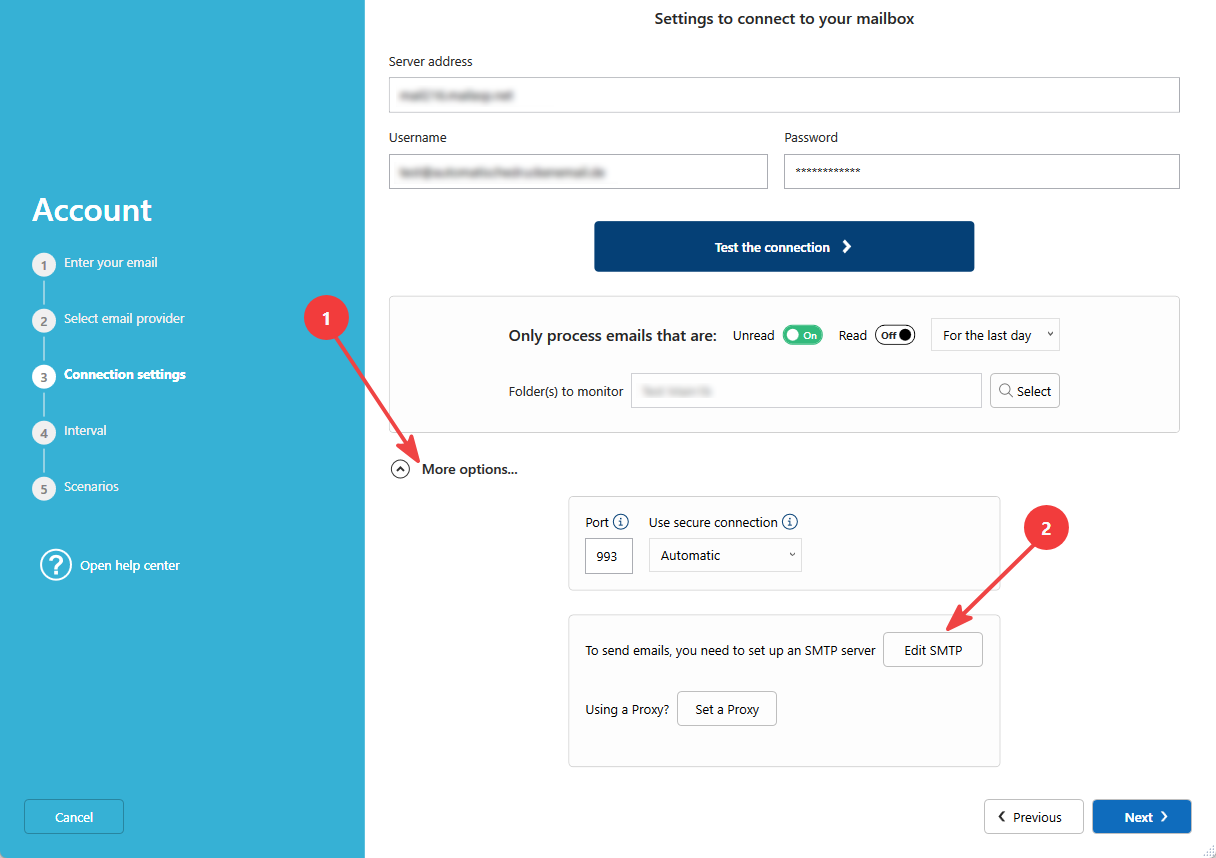
Set the SMTP in the account:
- Edit the account and go to Step 3.
- Click More options, then Set SMTP.
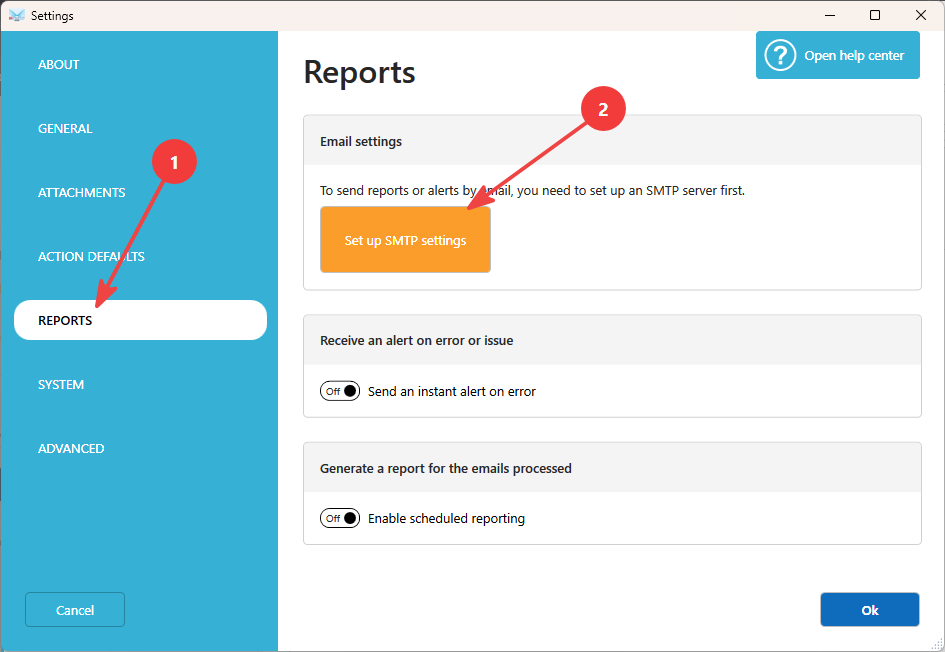
To receive reports (instant or daily)
Set the SMTP in Options, under Reports.
Fill in the settings
Start by clicking Templates to load predefined settings for providers like Gmail, Office 365, or Yahoo. Then complete the missing fields.
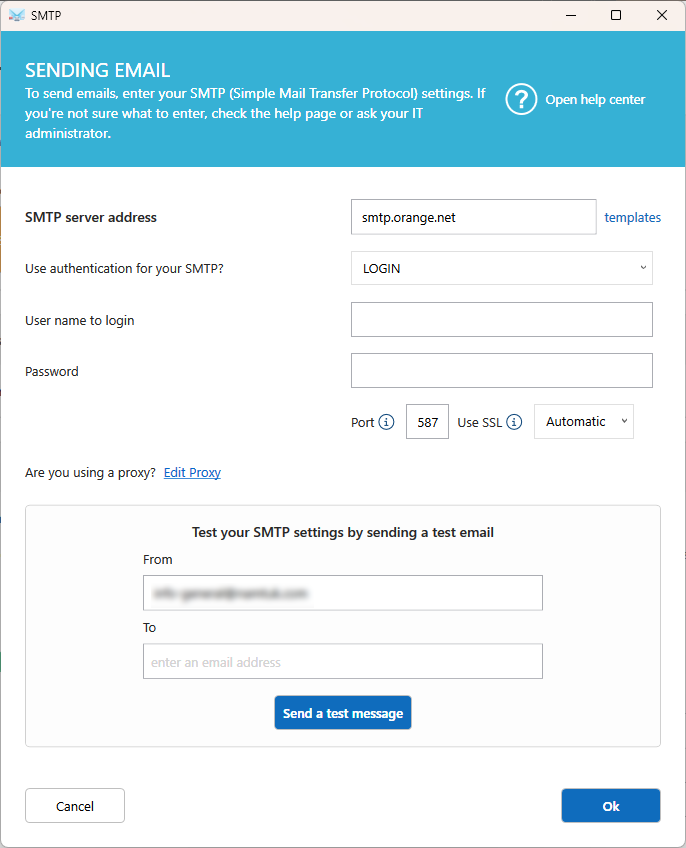
SMTP server address
The server address, usually smtp.yourdomain.com.
Authentication
Choose Login and password, or Modern authentication for Gmail and Office 365.
User name
The email address used to log in and send emails.
Password
The password of this mailbox.
Port
587 by default. Use 465 with SSL, or 25 if your provider requires it.
Use SSL
Leave Automatic unless your provider asks for a specific mode.
Proxy (optional)
Leave the default to use your Windows proxy settings.
Test your settings
- Enter the sender email. It must be the same as the login.
- Enter a recipient email.
- Click Send a test message.
If the message arrives in the recipient's inbox, your SMTP is ready.
Troubleshooting
- Authentication failed: Check your user name and password. For Gmail and Office 365, use modern authentication.
- Connection failed: Check the server address and the port. Make sure your firewall or antivirus isn't blocking the connection.
- Message refused: Some providers only allow the sender address that matches the login.
Related articles
- Action: Send an email
- Add your first email account
Was this article helpful?
That’s Great!
Thank you for your feedback
Sorry! We couldn't be helpful
Thank you for your feedback
Feedback sent
We appreciate your effort and will try to fix the article