Action: Save attachments to disk
Modified on Thu, 1 Oct at 2:33 PM
Automatically back up, archive, or export the files attached to your emails. This action saves each attachment to a local, a network folder or an FTP, and can convert it to PDF along the way. It works with protected attachments (PDF, word, Excel,...)
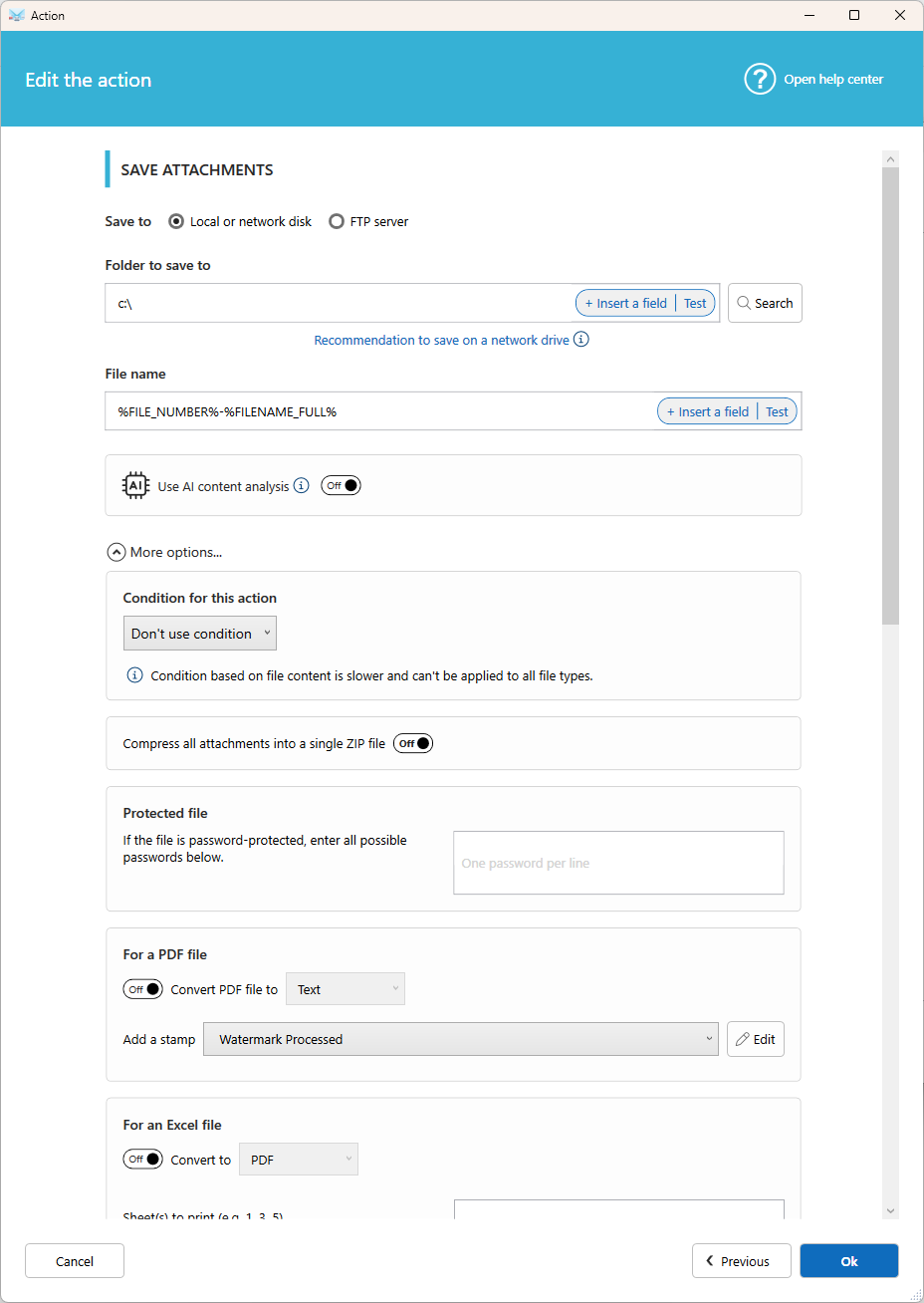
Settings
Folder
Where the attachments are saved. Local and network folders are both supported. You can use fields to organize files automatically, for example one folder per sender or per month. If the folder doesn't exist, it is created for you.
Note: For a network folder, always use the full network path, for example
\\myserver\disk\folder. Avoid mapped drive letters likeX:. They aren't available when Automatic Email Manager runs as a Windows service (when no user is logged in).
File name
The name of the saved file. Include fields to make each name unique, for example the date, the sender, or the original file name. You can also use field functions to keep only part of a value (see Use fields functions to extract part of your data).
Use AI content analysis
Turn this on to let AI email content result. Learn more.
Condition (optional)
Save only the attachments you need, based on their file name or content (only for some attachments type like pdf, word, excel, text, ppt,...). For example, set Contains .pdf to save PDF files only. Attachments that don't match are skipped.
Compress all attachments into a single ZIP file
You can save all attachments into a ZIP file, instead one by one.
Protected file
If you receive some protected documents (word, pdf, office,...), you can enter one or more possible password (one per line).
For each file type, you can set specific options
Follow the instructions on screen
Tips
- If an email can contain several attachments, make sure the file name includes a unique field, such as
%FILENAME_FULL%or%FILE_NUMBER%. Otherwise, files with the same name overwrite each other. - To save the email and its attachments together in one PDF, use Save and merge email and attachments instead.
Related articles
- Action: Save email to disk
Was this article helpful?
That’s Great!
Thank you for your feedback
Sorry! We couldn't be helpful
Thank you for your feedback
Feedback sent
We appreciate your effort and will try to fix the article