Action: Mark email as read, unread, answered, urgent
Modified on Thu, 1 Oct at 3:22 PM
Change the status of an email on the server once it's been processed. The most common use is to mark it as read, so you can see at a glance which emails have already been handled.
How to add it
- Open the scenario you want to edit, or create a new one.
- Click Add action.
- Select Manage email on server, then Mark email as read, unread, answered, urgent…
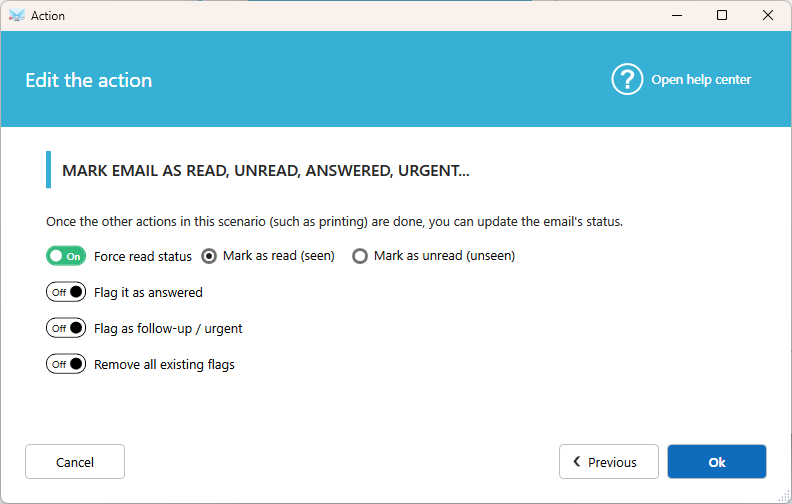
- Choose the status to apply and click Ok.
Available statuses
- Mark as Read (seen)
- Mark as Unread (unseen)
- Flag as answered
- Flag as to follow/urgent
- Remove all existing flags
Select at least one status, then save the action.
Good to know
- The status is applied at the end of the scenario, after all the other local actions.
- A scenario can contain only one Mark email action.
- Available flags may vary depending on your email provider.
Tips
- Add this action to every scenario, so processed emails are always easy to spot in your mailbox.
- To clean your inbox completely, use Move email or Delete email instead.
Was this article helpful?
That’s Great!
Thank you for your feedback
Sorry! We couldn't be helpful
Thank you for your feedback
Feedback sent
We appreciate your effort and will try to fix the article