Action: Send a message to a Teams channel
Modified on Thu, 1 Oct at 4:26 PM
Get a message in your Teams channel each time a specific email arrives: an email from a key customer, an alert, a report, an email with an attachment, or any other trigger. Choose what the message contains, such as the sender, the subject, the body, or the list of attachments, by inserting email fields.

Note: The Teams action can't post attachments in the channel. To send attachments, use the Telegram or Slack action instead.
Setup takes two steps. If you get stuck, contact us.
Step 1: Create a webhook in Teams
- Open Teams (in your browser or in the desktop app).
- Click Apps and search for Incoming Webhook.

- Select Incoming Webhook, then click Add to a team.

- Select the channel that will receive the notifications, enter a name for the webhook, and click Create.

- Copy the webhook URL. You'll need it in the next step.

Step 2: Add the action in Automatic Email Manager
- In the left menu, click Scenarios. Edit an existing scenario or click New scenario.
- Click Add action, then select Send notification, then Send a message to a Teams channel.
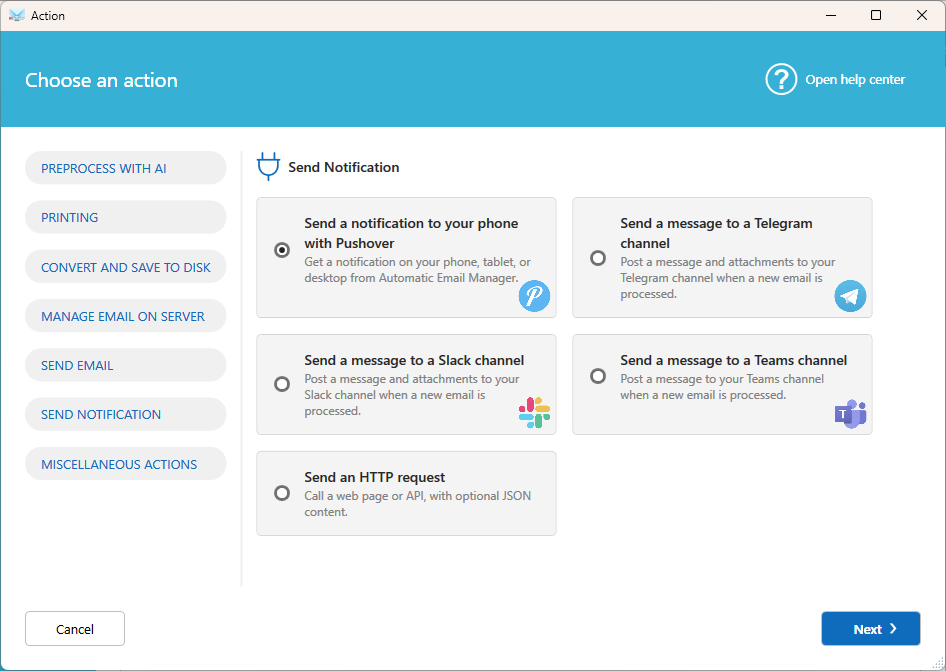
- In Webhook Url, paste the URL you copied from Teams.
- Enter the message to publish. Click Fields to insert email data.

- Click Ok to save the action.
That's it. Each time a matching email arrives, the message is posted in your Teams channel.

Tip: To be notified only for specific emails, add a condition to the scenario, for example when the sender is a particular customer.
Related articles
- Send a message to a Slack channel
- Send a message to a Telegram channel
- What are the conditions?
Was this article helpful?
That’s Great!
Thank you for your feedback
Sorry! We couldn't be helpful
Thank you for your feedback
Feedback sent
We appreciate your effort and will try to fix the article