Action: Change email subject
Modified on Thu, 1 Oct at 5:18 PM
Edit the subject of an email on the server once it's been processed. A common use is to add a tag like [DONE] at the start, so you can see at a glance which emails have been handled.
Available for Office 365 and Exchange accounts only.
Add the action
- Create or edit a scenario.
- Click Add action, then select Manage email on server, then Change email subject.
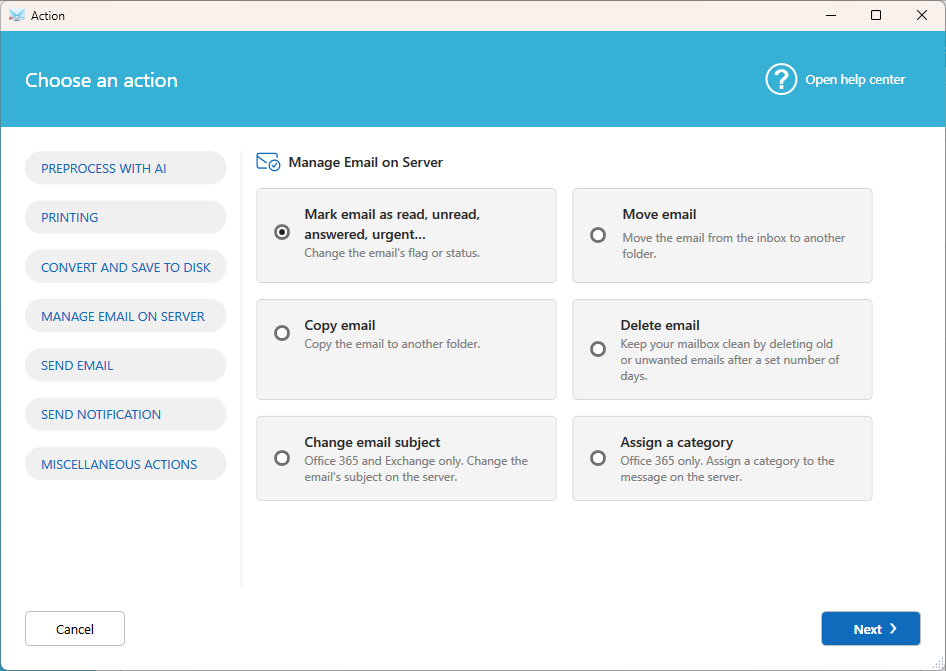
- Choose how to change the subject:
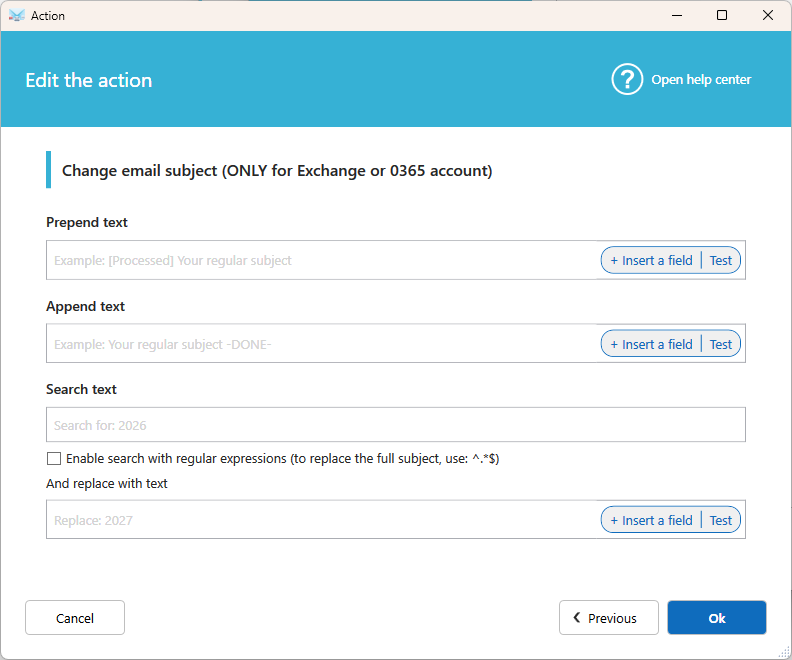
- Prepend text: Adds text before the current subject.
- Append text: Adds text after the current subject.
- Search text / And replace with text: Finds a text in the subject and replaces it with another. You can use a simple text or a RegEx (.NET).
Examples
| Goal | Setting | Result |
|---|---|---|
| Mark as processed | Prepend text: [DONE] | [DONE] Order 1042 |
| Add a reference | Append text: - Processed | Order 1042 - Processed |
| Replace a word | Search Quote, replace with Invoice | Invoice 1042 |
| Replace the whole subject | Search ^.*$, replace with New subject | New subject |
Tip: Use Fields in the replacement text to insert email data, for example the sender name.
Good to know
- The subject is changed on the server. It is also changed in all your email apps connected to this mailbox.
- Use this action together with Mark email as read, unread, answered, urgent or Assign a category to make processed emails easy to spot.
Related articles
- Action: Assign a category
- Action: Mark email as read, unread, answered, urgent
Was this article helpful?
That’s Great!
Thank you for your feedback
Sorry! We couldn't be helpful
Thank you for your feedback
Feedback sent
We appreciate your effort and will try to fix the article