What is a scenario?
Modified on Thu, 1 Oct at 5:46 PM
A scenario is a list of actions that run automatically when a new email arrives. For example: print the email, save the attachments as PDF, then move the email to an archive folder.
A scenario can also:
- Be used by one or several accounts.
- Apply only to specific emails, using conditions.
- Run only on certain days or hours.
- Be turned on or off at any time.
Create a scenario
Step 1: Add actions
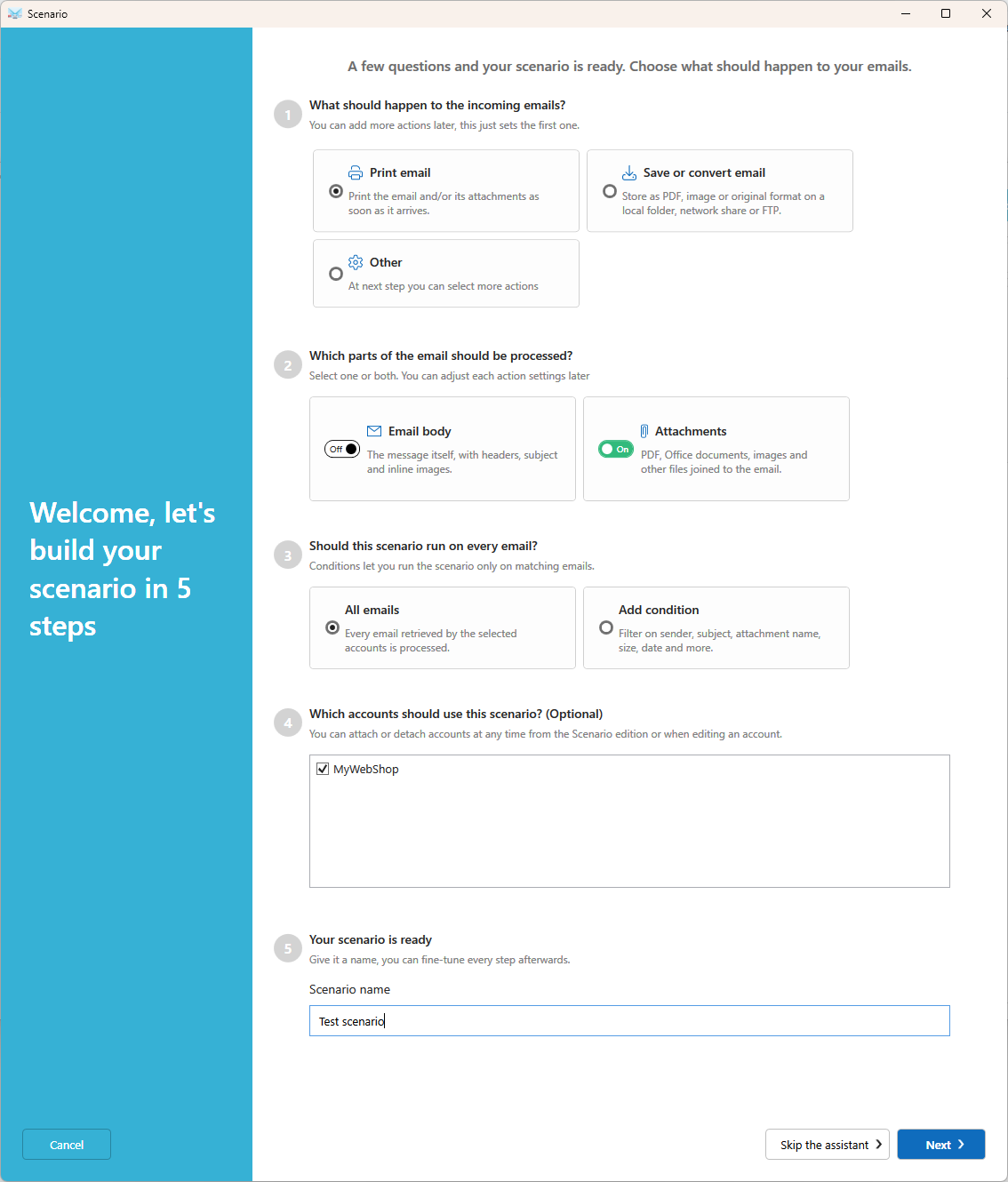
- A wizard helps you create a simple scenario quickly. To skip it, click Skip at the bottom right.
Click Add action and select the actions you need. They run in the order shown. You can move the actions in the list to change order.
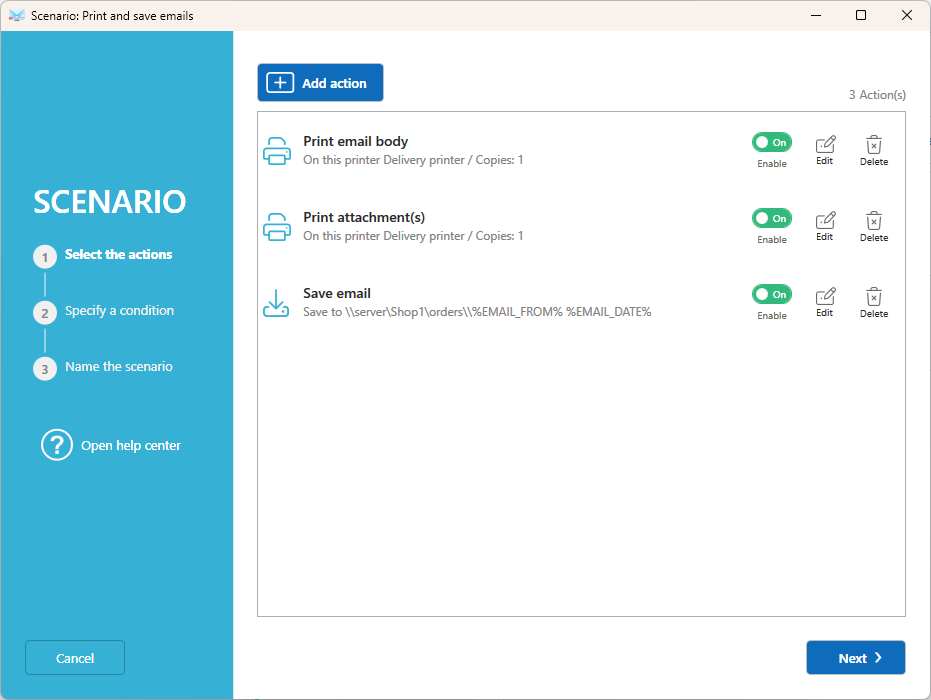
Tip: Turn an action off to test your scenario without running every action. Turn it back on when you're ready.
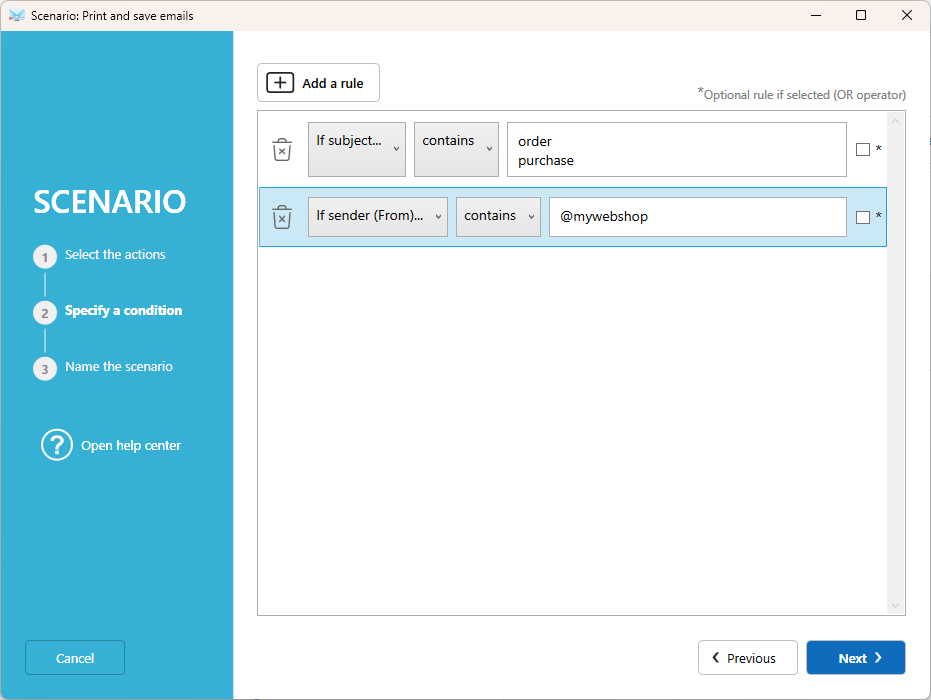
Step 2: Add conditions (optional)
- Conditions let you choose which emails the scenario applies to, for example only emails from a specific sender or with a specific word in the subject.
Note: If you don't set a condition, the scenario applies to all emails.
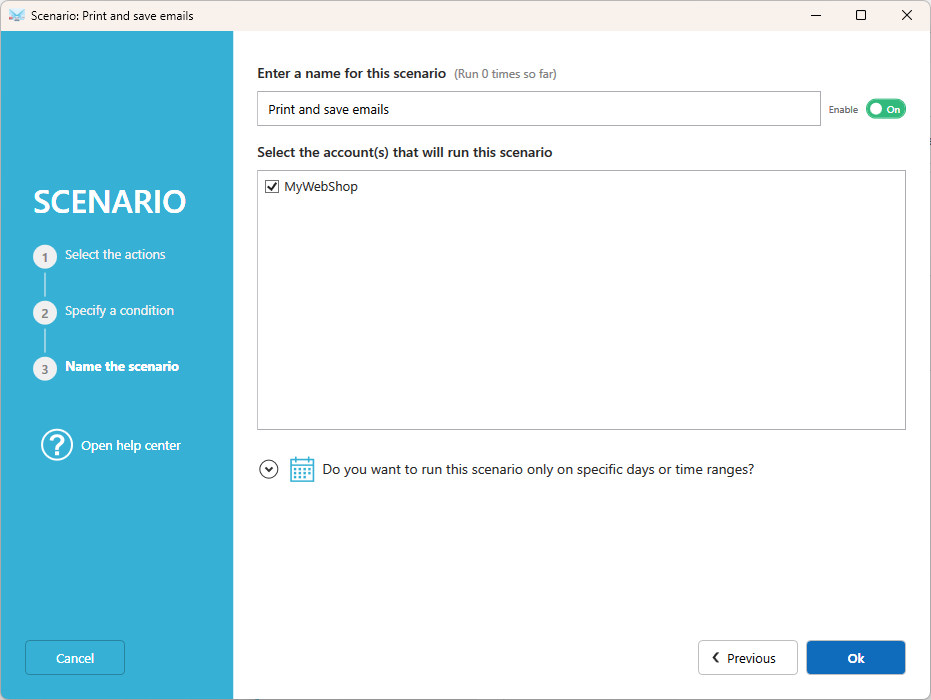
Step 3: Name your scenario and choose the accounts
- Enter a name that describes what the scenario does, for example Print orders.
- Select the account(s) that use this scenario.
- Optional: set a schedule, to run the scenario only on specific days or time ranges.
- Turn the scenario on or off. Turn it off to pause it.
Good to know
- Actions that depend on a mailbox, such as Move email and Copy email, can't be shared between accounts. Create a separate scenario for each account.
- An account can use several scenarios. Each one is checked, and runs when its conditions match.
- To pause a scenario without deleting it, turn it off.
Related articles
- Add your first email account
- What are the conditions?
Was this article helpful?
That’s Great!
Thank you for your feedback
Sorry! We couldn't be helpful
Thank you for your feedback
Feedback sent
We appreciate your effort and will try to fix the article