Key concepts in Automatic Email Manager
Modified on Thu, 1 Oct at 5:59 PM
Automatic Email Manager runs directly on your PC or server. Your emails are processed locally and your data is never sent to an external service or to the cloud (Except if you use action like AI, Slack, Telegram, Pushover, Teams).
How it works
The software connects to your mailbox and watches for new emails. When one arrives, it applies the scenarios you've defined, based on your criteria. Every email is handled automatically, the way you want.
In short:
Account → watches a mailbox → Scenario → decides what to do → Actions → do the work
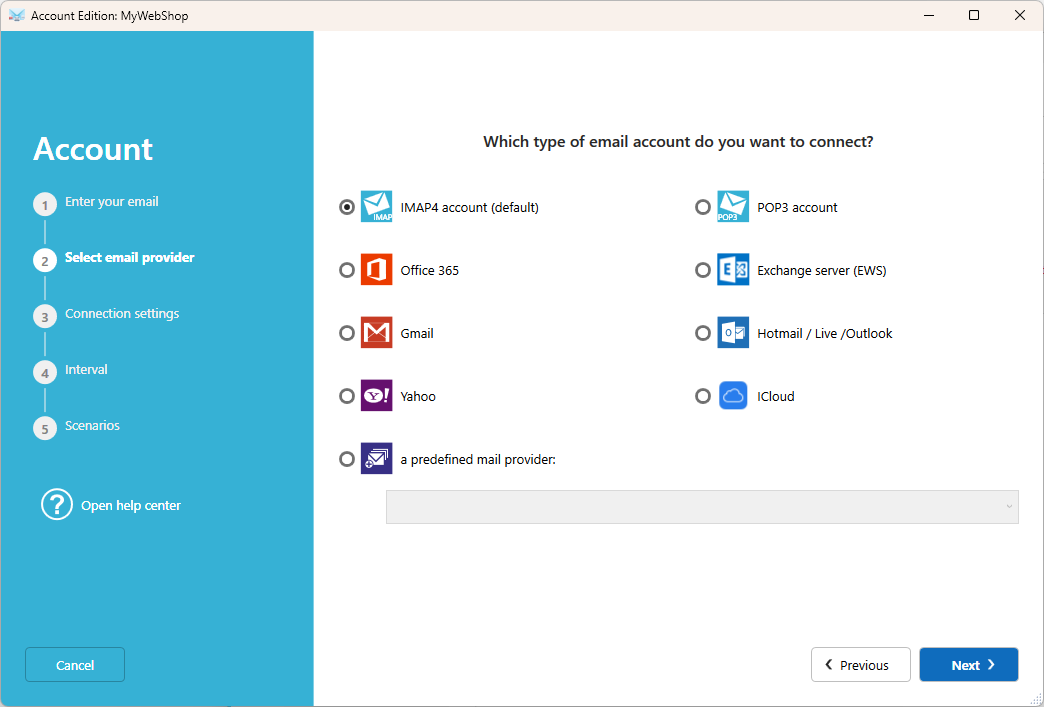
Account
An account is the connection to a mailbox that Automatic Email Manager monitors.
It supports Office 365, Gmail, Microsoft Exchange, Yahoo, and any provider that offers standard IMAP or POP3 access.
By default, an account processes unread emails from the last 7 days. You can change this to match your needs, for example to process all emails.
Scenario
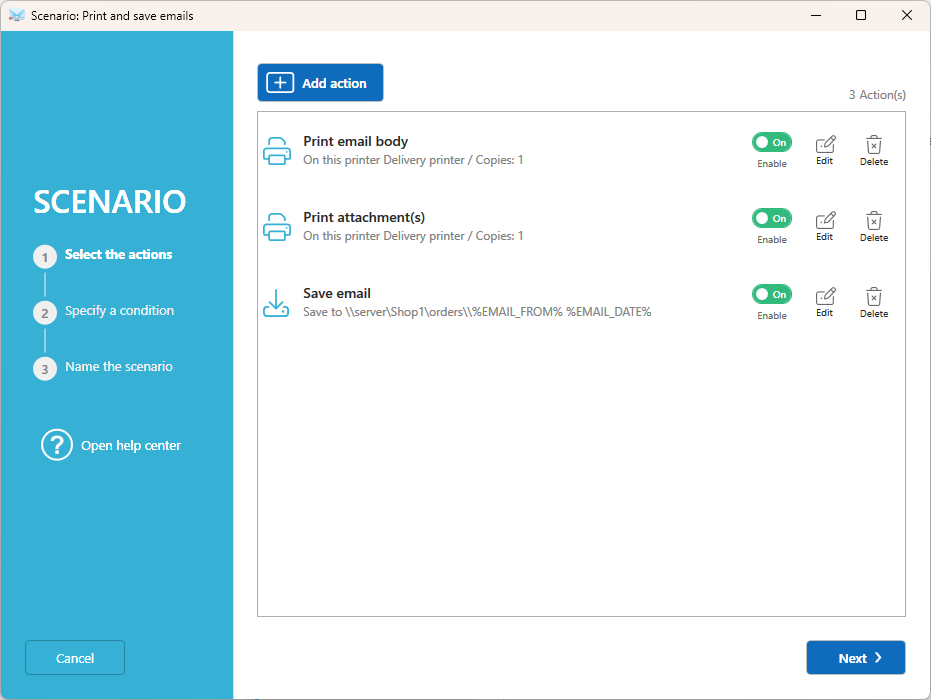
A scenario is a list of actions applied to emails. It tells Automatic Email Manager what to do once a new email is detected.
You can add conditions to a scenario so it applies only to certain emails, for example when the subject contains ORDER. Create as many scenarios as you need:
- If an email contains a fax, print it on the office printer.
- If it contains an invoice, print it for the accounting team and save it as a PDF on the server.
The same scenario can be used by several accounts.
Action
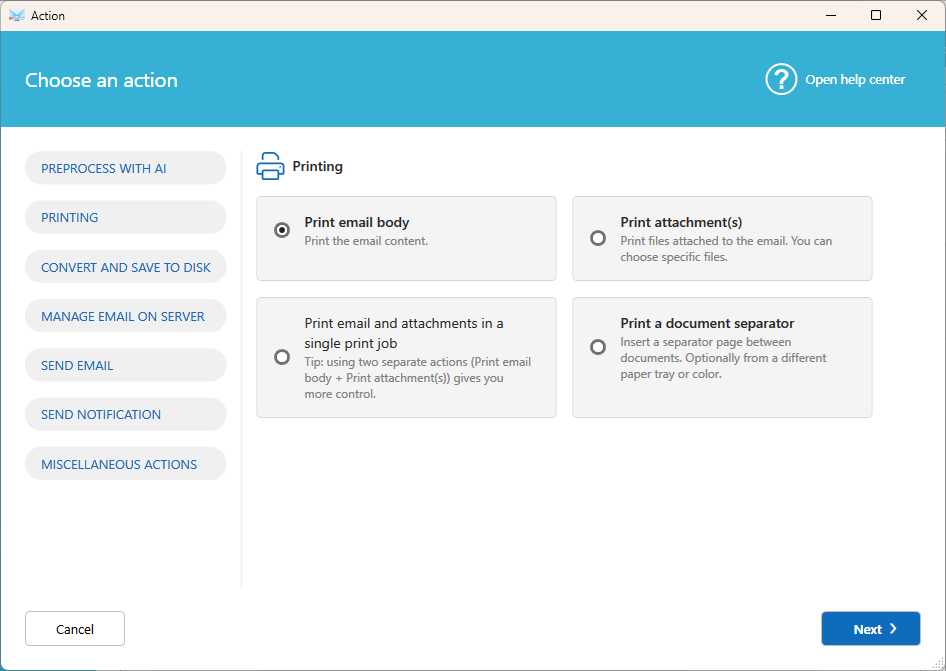
An action is a task performed on an email. Each scenario contains one or more actions, for example:
- Print the email or its attachments.
- Save the email or attachments as PDF.
- Send a reply or forward the email.
- Post a message in Teams, Slack, or Telegram.
- Move or delete the email.
Runs as a Windows service
When you install Automatic Email Manager, a Windows service named AEM is installed automatically. It processes your emails even when no one is logged in to Windows. You have nothing to set up.
Having trouble when no one is logged in? See Troubleshoot the Windows service.
Next steps
- Add your first email account.
- Create your first scenario.
- Explore the available actions.
Related articles
- What are the conditions?
Was this article helpful?
That’s Great!
Thank you for your feedback
Sorry! We couldn't be helpful
Thank you for your feedback
Feedback sent
We appreciate your effort and will try to fix the article