Settings
Modified on Fri, 2 Oct at 2:40 PM
Settings control how Automatic Email Manager looks and works. To open them, click Settings in the left menu. They are grouped into seven categories.
About
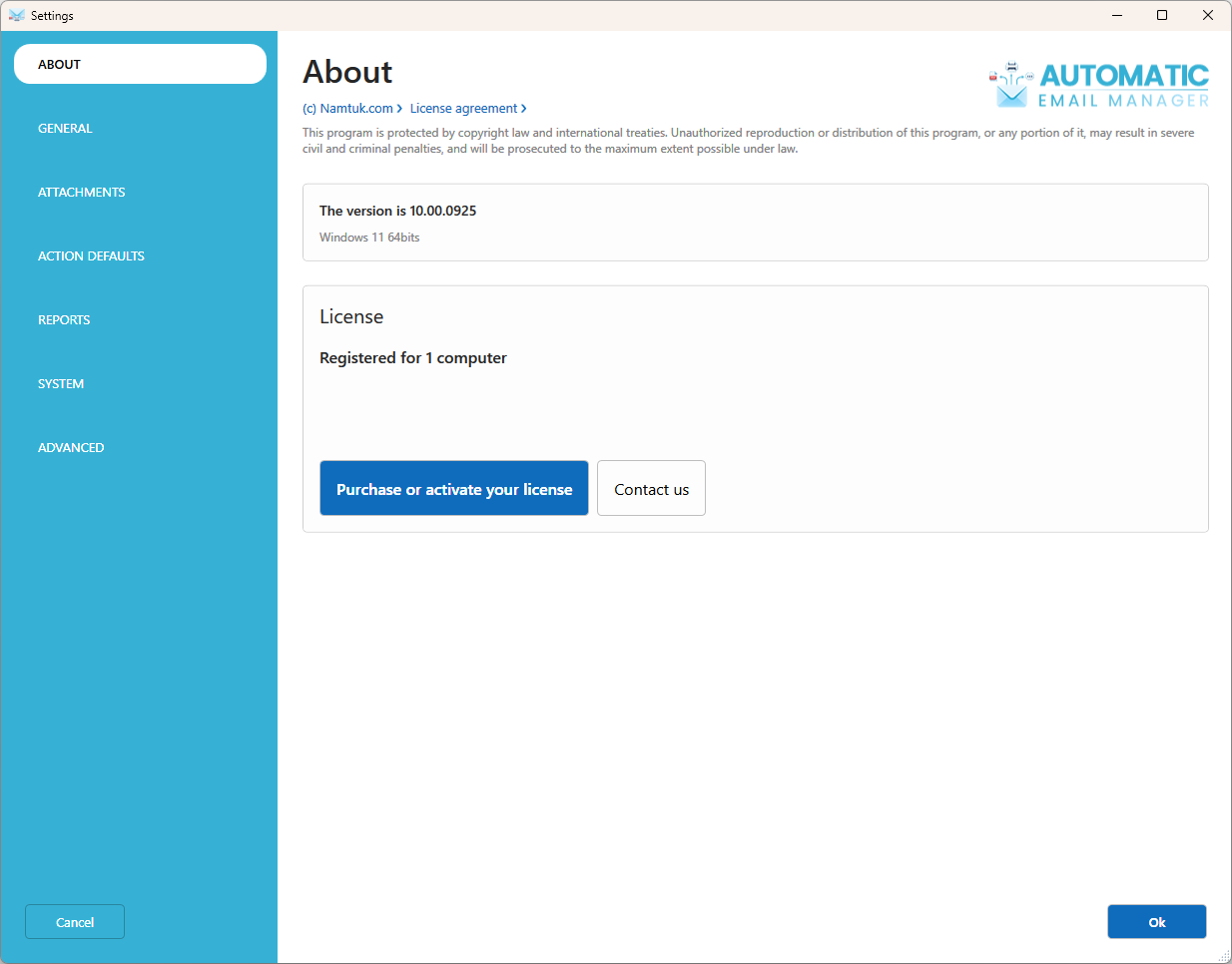
- Check that you're using the latest version.
- Enter or manage your license key.
General
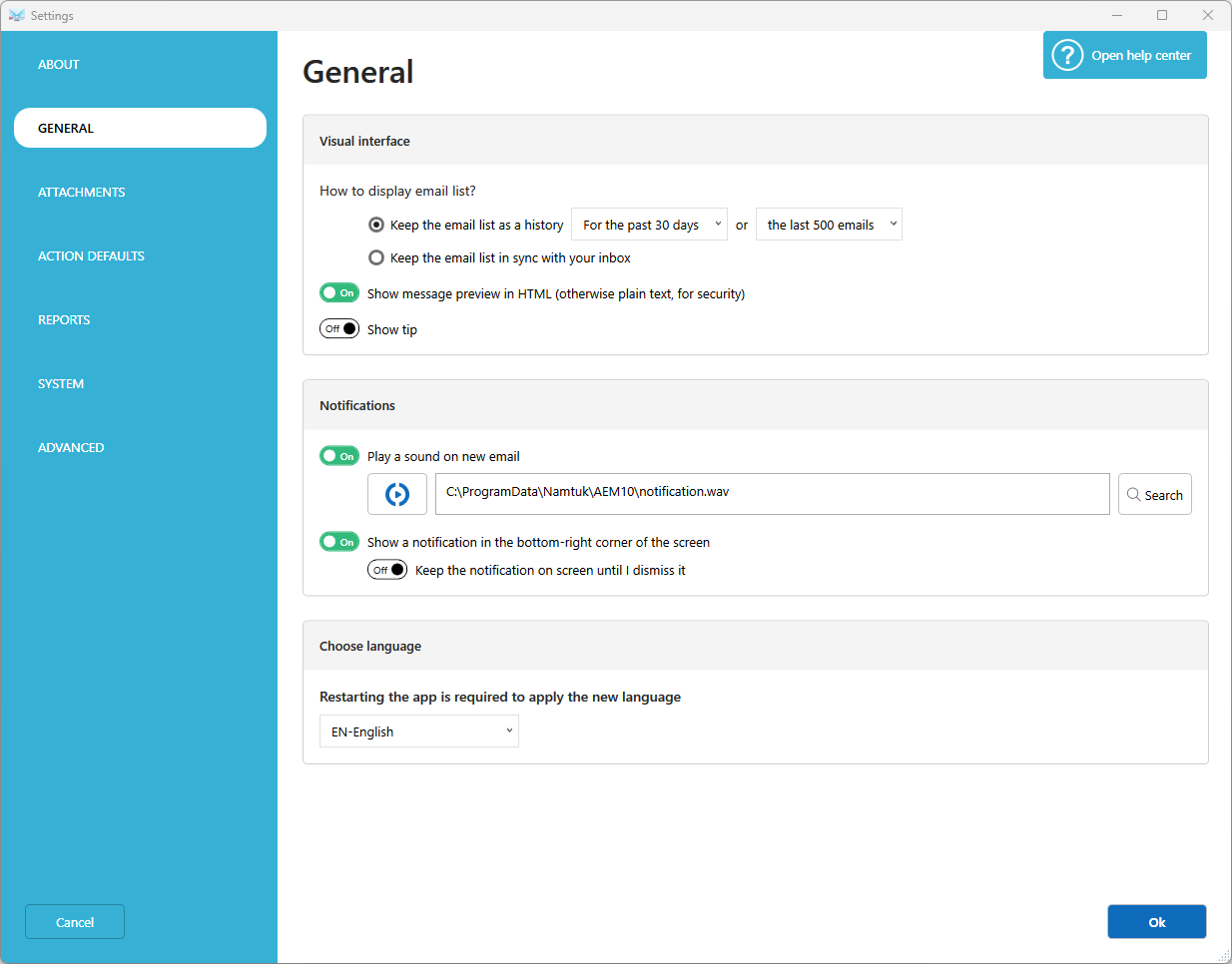
- How to display email list: Since V10 we changed the way the list of messages is displayed, it keeps it like an history and no more like a mirror of your inbox.
- Show message preview in HTML: If you click in the message list 'View message', it will display your message in text format or HTML format, for security reason the default settings is in TEXT mode.
- Show tip: Display some tip but it takes space on screen.
- Notifications: Choose what happens when new emails arrive: play a sound, show a discreet message, and keep it on screen until you click it.
- Language: Change the language of the application. The application will restart automatically when you valid.
Attachments
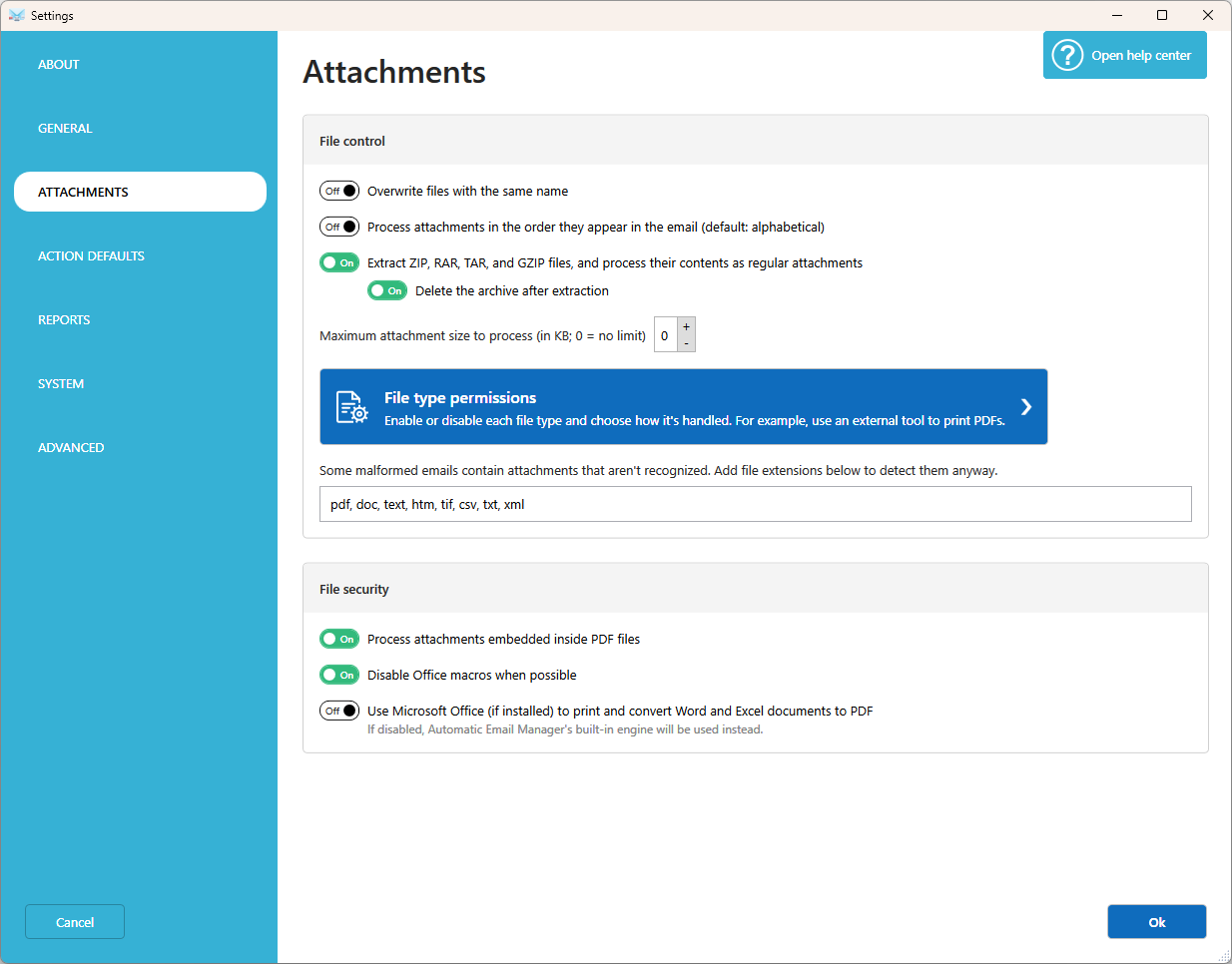
Control which attachments are processed and how.
- Overwrite files with the same name: An email can receive attachment with same filename.
- Process attachments in the order they appear in the email: By default the attachments are processed the alphabetical order, in some cases you want to process attachement in the order they are added in the email, in this case a number is added in the filename.
- Size limit: Set the maximum size in kb of attachments to process, this is used to exclude large file.
- File type permissions: Choose which file types are processed. For security reasons, a new file type is turned off by default until you confirm it.
- Some malformed emails contain...: Some attachments can be embedded inside the email body but have to be processed like a classic attachment, enter it the type.
- Process attachments embedded inside PDF files: If you want to process file attached inside a PDF like a classic email attachment.
- Disable Office macros: For security reason it is much safer to not execute automatically macro.
- Use Microsoft Office: To print or convert in PDF an Office file (Word, Excel, PowerPoint,...), the original application is the better than our internal system, but you need Office installed and it is not available in Service mode.
Action defaults
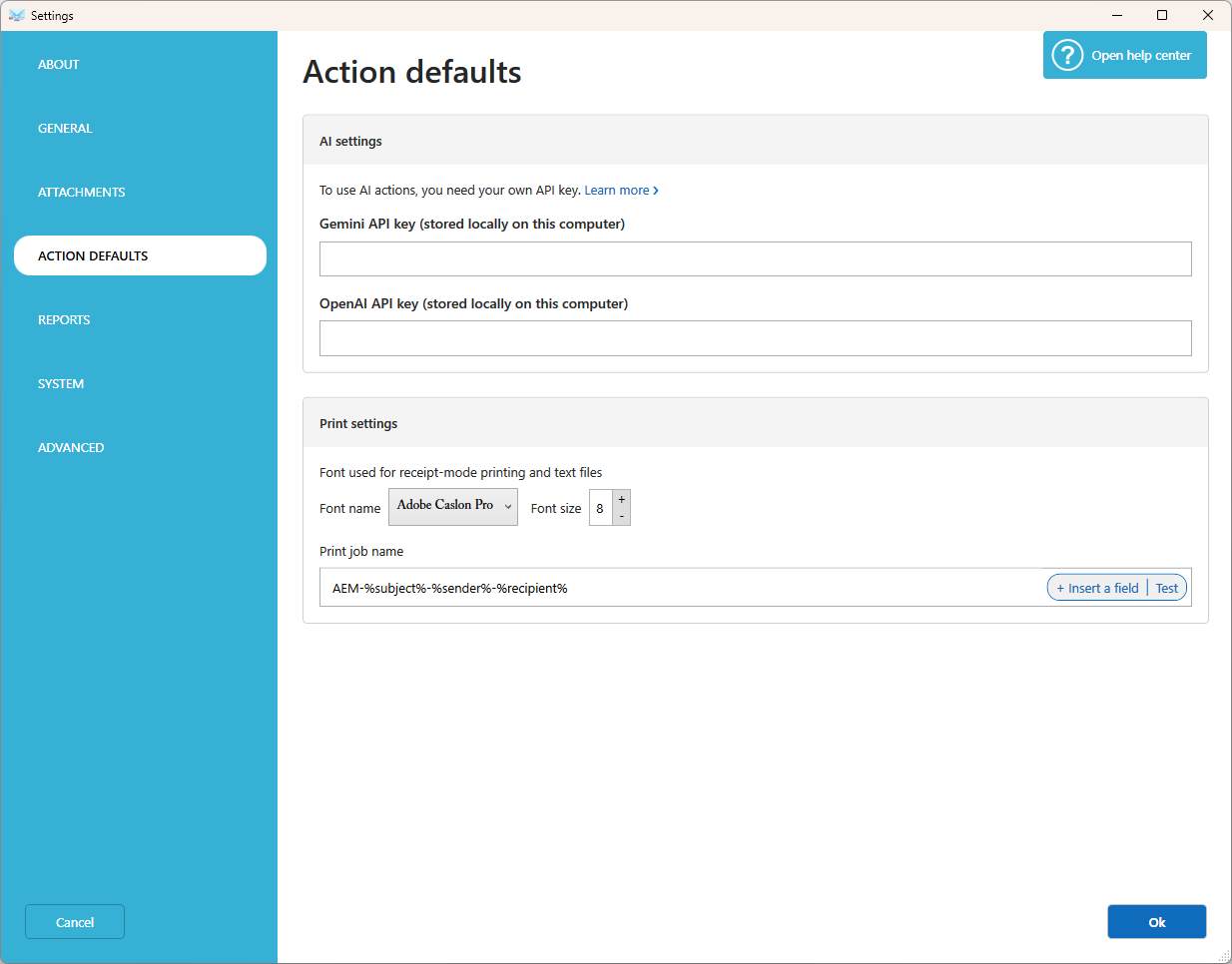
Set the default values used by some actions, so you don't have to enter them every time.
- AI: Enter your API key for OpenAI ChatGPT and Google Gemini. See Get your API key for ChatGPT and Gemini.
- Printing: Set the default font used when printing in raw text mode, for receipt printers.
Reports
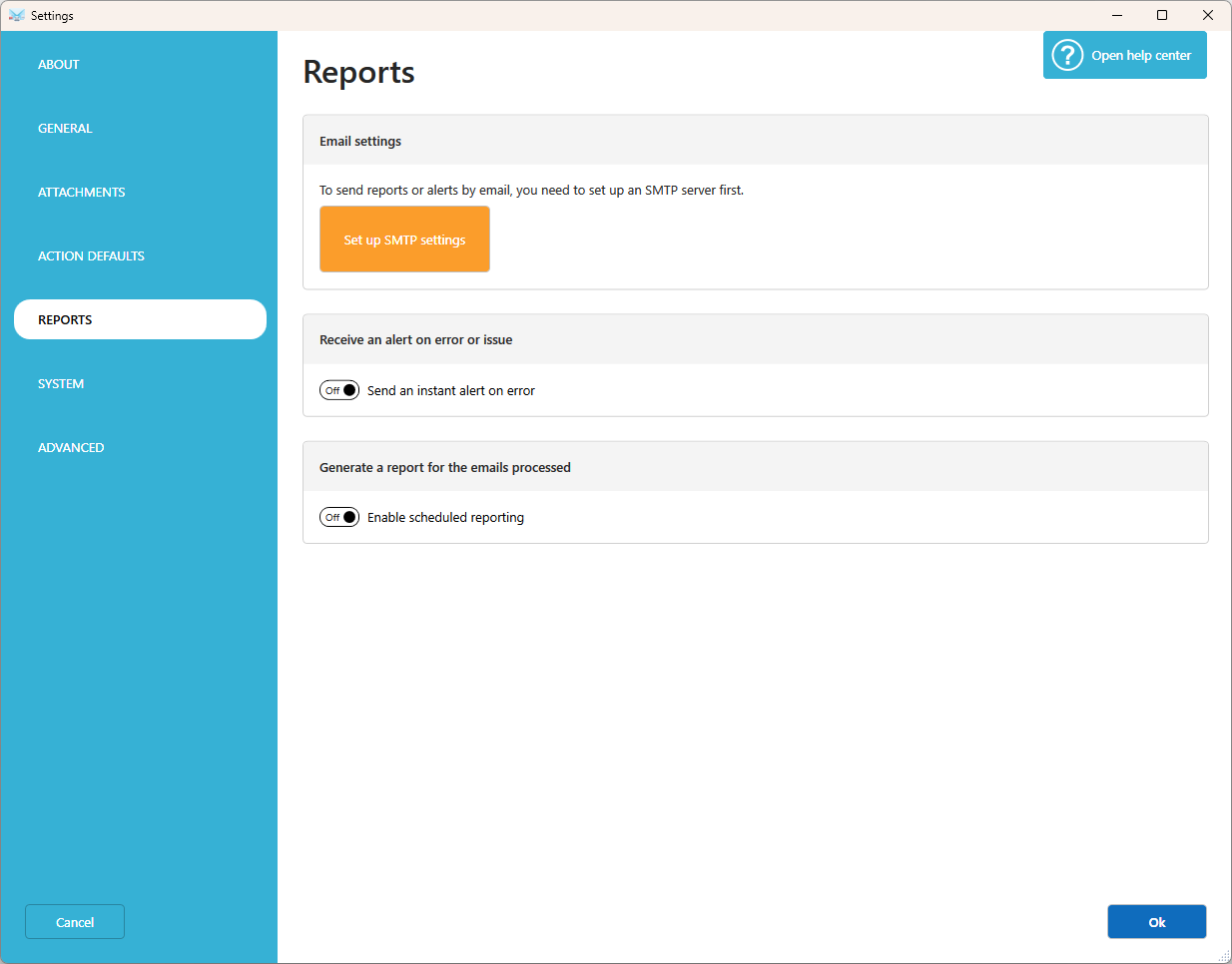
Stay informed without opening the application.
- Instant problem report: Get an email as soon as an error occurs.
- Daily report: Receive a summary of the emails processed, by email, as an html or CSV file.
Note: To send reports by email, set your SMTP first. See Set up your SMTP to send emails.
System
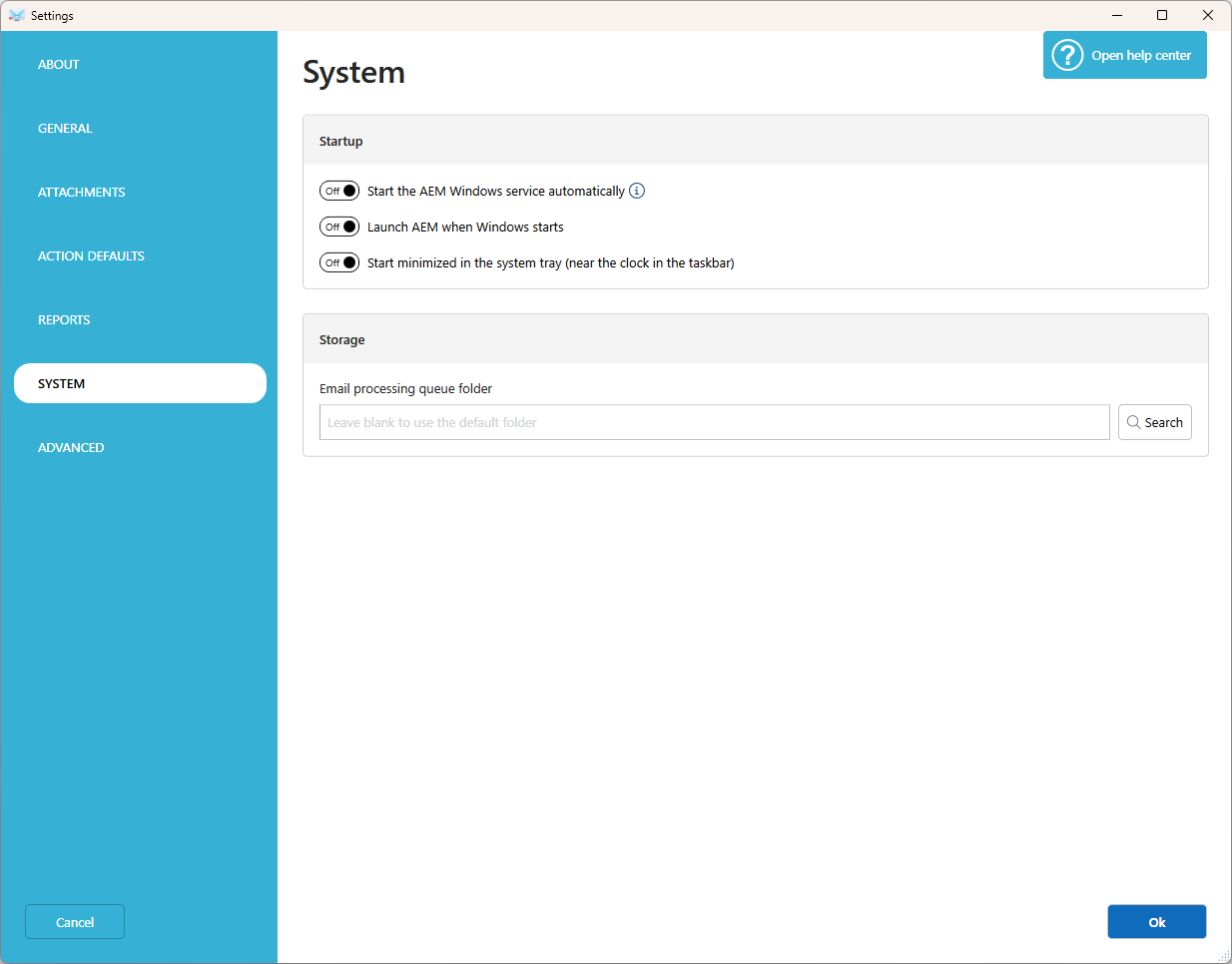
Set how Automatic Email Manager works on Windows.
- Start the Windows service automatically: Automatic Email Manager will continue to process emails even if you are unlogged from Windows, if your Windows is in sleep mode or turned off then Automatic Email Manager will not process any emails.
- Start the user interface application when Windows starts, and start minimized in the system tray (close to the Windows clock at bottom right of the screen).
- Storage: By default the emails received are saved on local disk for process, the default folder is: C:\ProgramData\Namtuk\AEM10
Advanced
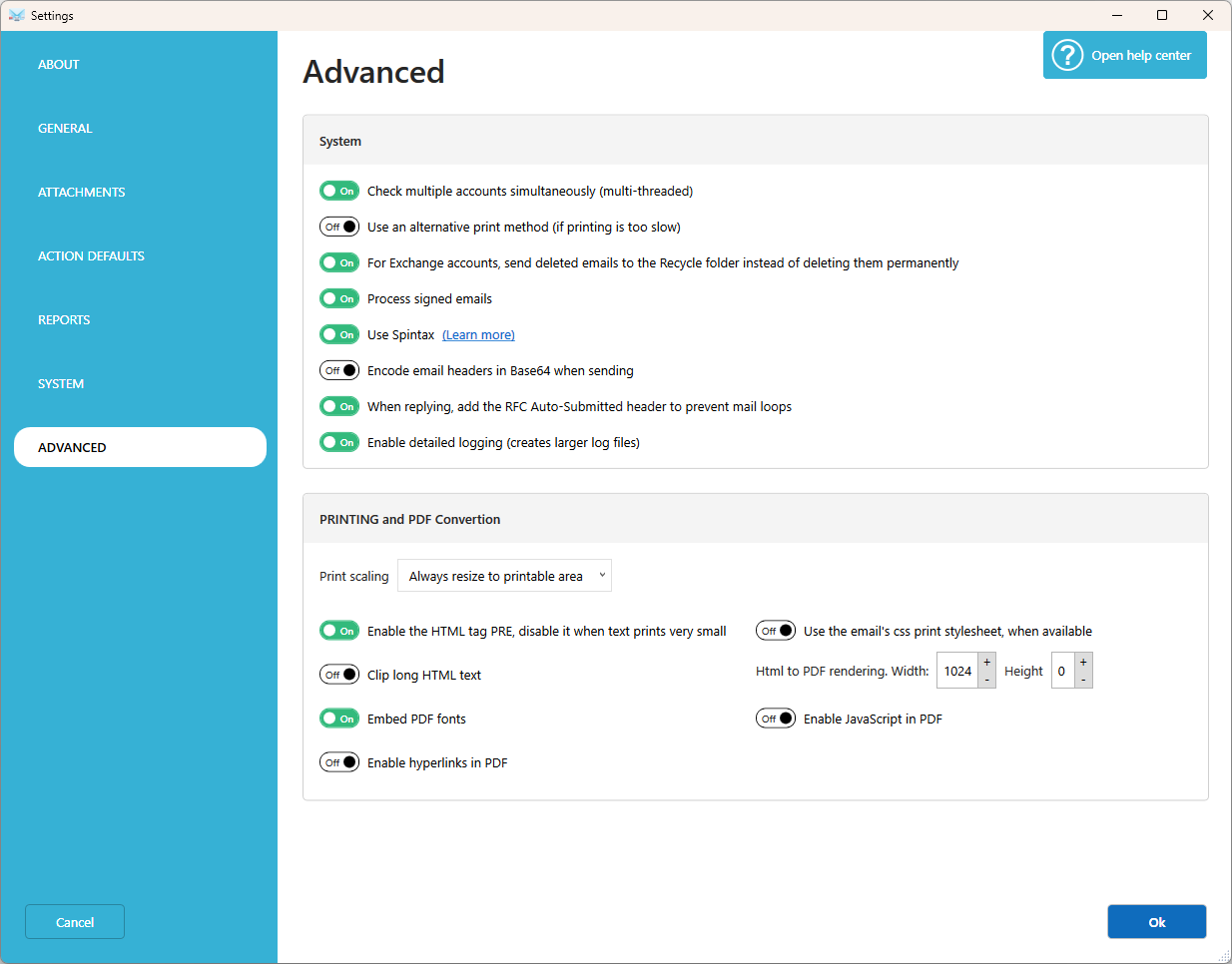
Advanced options are already set to work well in most cases. Change them only if you know what you're doing, or if technical support asks you to.
Tips
- Settings apply to the whole application. Settings in an account, a scenario, or an action apply only to that one.
- Before changing many settings, use Tools, then Backup and restore, to save a copy of your configuration.
Related articles
- Get your API key for ChatGPT and Gemini
- Set up your SMTP to send emails
- Vary your automatic emails with Spintax
Was this article helpful?
That’s Great!
Thank you for your feedback
Sorry! We couldn't be helpful
Thank you for your feedback
Feedback sent
We appreciate your effort and will try to fix the article