Action: Save email to disk
Modified on Thu, 1 Oct at 2:18 PM
Archive, back up, or export your emails automatically. This action saves each processed email to a local folder, a network folder, or an FTP server, in the format you need: PDF, EML, MSG, image, or text.
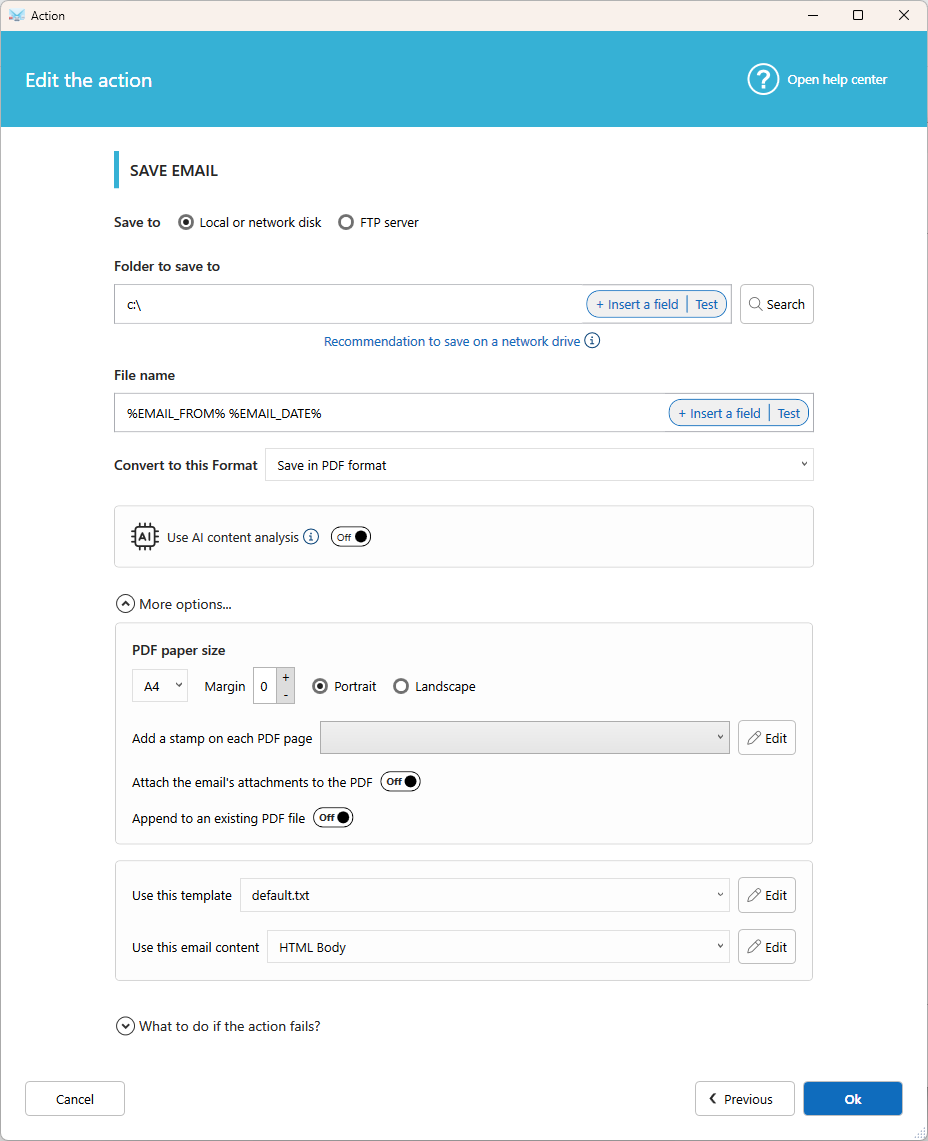
Settings
Folder
Where the file is saved. Local and network folders are both supported. You can use fields to organize files automatically, for example by date or sender. If the folder doesn't exist, it is created for you.
Note: For a network folder, always use the full network path, for example
\\myserver\disk\folder. Avoid mapped drive letters likeX:. They aren't available when Automatic Email Manager runs as a Windows service (when no user is logged in).
File name
The name of the saved file. Include fields to make each name unique, for example the date, the sender, or the subject. You can also use field functions to keep only part of a value (see Use fields functions to extract part of your data).
File format
Choose how the email is saved:
- EML: standard email format, readable by most email apps.
- MSG: Microsoft Outlook format.
- Image: PNG, TIFF, or JPEG.
- Text: plain text.
- Xml: save in xml using a template (Use this template).
- Html
Use AI content analysis
Turn this on to let AI email content result in your reply (for the field %EMAIL_BODY%). Learn more.
Paper size
Available for PDF. Select the page size of the document.
With template
Choose a visual template to control how the email looks, just like when printing.
Use these email data
By default, the full HTML content of the email is used. Select another source, or a template from the data extractor, to save only a specific part of the email (see Extract data from an email).
Add a stamp
Add a stamp or page numbers on each page. Create your stamps in Tools, then Stamp templates.
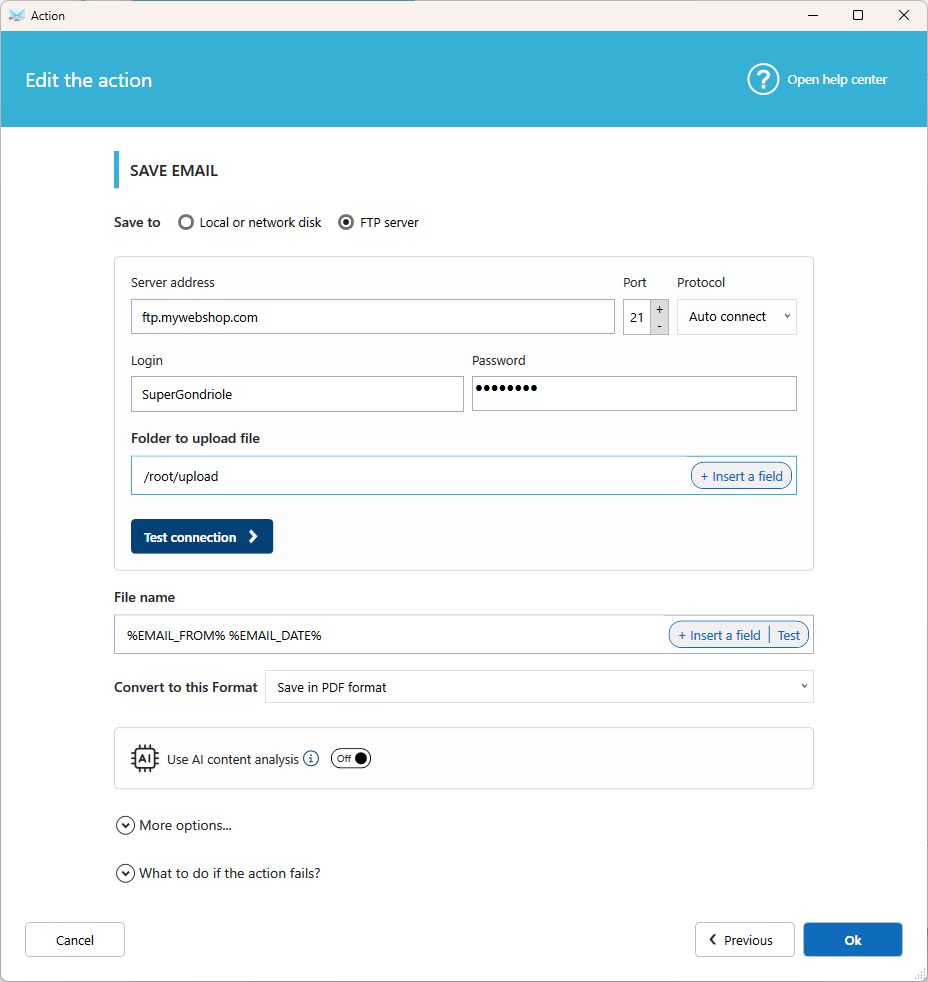
Save to an FTP server
Select the FTP option to upload the file to a server instead of saving it on disk.
Tips
- Always include a unique field in the file name, such as the date and time or the subject, so a new email never overwrites an existing file.
- To keep the original message intact for archiving, save it in EML or MSG format.
- To save the email and its attachments in a single PDF, use Save and merge email and attachments instead.
Related articles
Was this article helpful?
That’s Great!
Thank you for your feedback
Sorry! We couldn't be helpful
Thank you for your feedback
Feedback sent
We appreciate your effort and will try to fix the article