Action: Preprocess attachments with AI
Modified on Fri, 2 Oct at 11:30 AM
Send your attachments to AI to summarize, translate, or extract information. Then use the result in other actions, like printing, saving, or notifications.
Available since version 10. This action is completely optional. You choose your AI provider (OpenAI ChatGPT or Google Gemini) and use your own API key, so you stay in control of your data.
Privacy: When you use this action, the email data is sent to the AI service you selected. The result comes back as text. Don't use this action for emails that must not leave your network.
Add the action
- Create or edit a scenario.
- Click Add action, then select Preprocess with AI, then Preprocess attachments.
- Choose your model, enter your prompt, and click Ok.
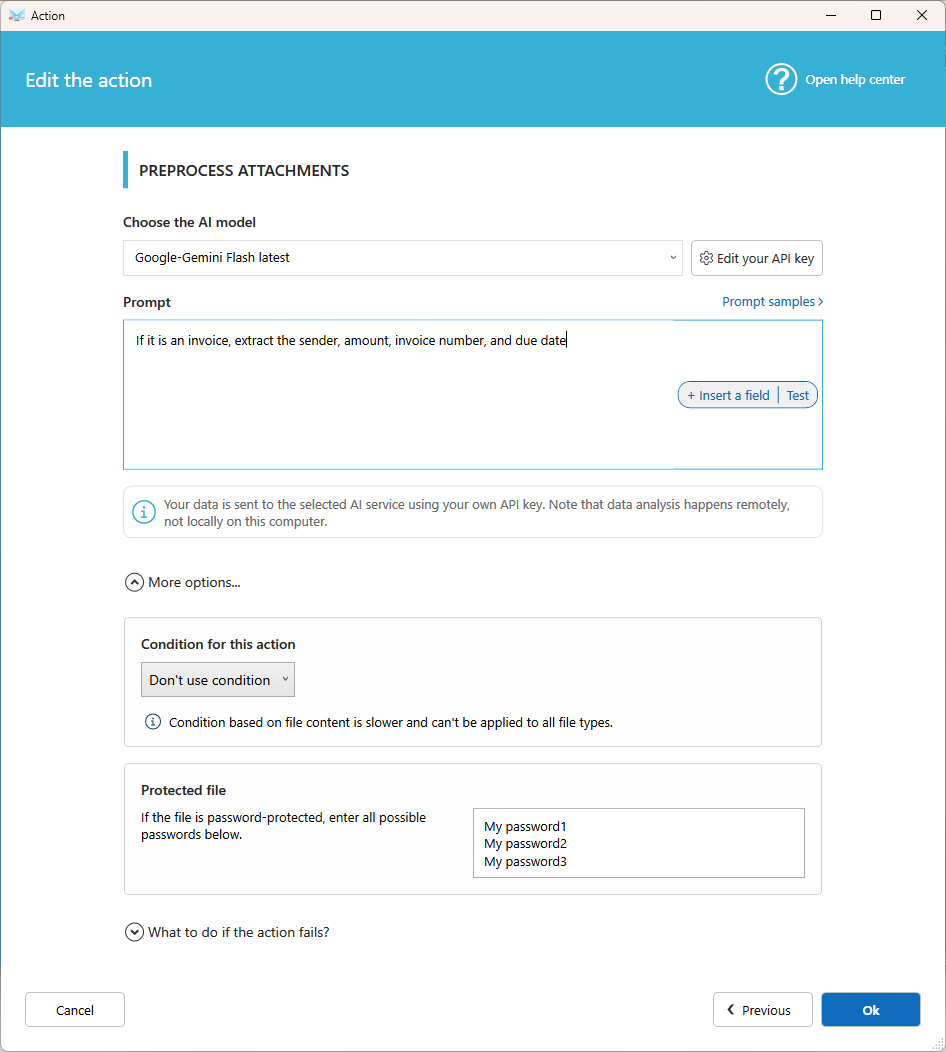
Settings
AI model
Select the model to use. The list is updated regularly with the latest models.
API key
Enter your own API key for ChatGPT or Gemini. Set a default key in Options, so you don't have to enter it in every action. Learn how to get your API key.
Prompt
Write the instruction you give to the AI, for example Translate this attachment in Italian. Click Insert a field to add email data, such as the subject. Prompt samples are provided to help you start.
Condition (optional)
Process only the attachments you need, based on their file name or content (only for some attachments type like pdf, word, excel, text, ppt,...). For example, set Contains .pdf to save PDF files only. Attachments that don't match are skipped.
Protected file
If you receive password-protected documents (Word, PDF, Office, and more), enter the possible passwords, one per line. Each one is tried until the file opens.
Use the result in other actions
In the next actions of your scenario, such as Print attachment(s), Send an email, or Send a message to ..., turn on Use AI content analysis to use the AI result.
Prompt examples
- Summarize this document in 5 bullet points.
- Translate this attachment into English.
- Extract the invoice number, the date, and the total amount.
Related articles
- Action: Preprocess email content with AI
- Get your API key for ChatGPT or Gemini
- Action: Print attachment(s)
Was this article helpful?
That’s Great!
Thank you for your feedback
Sorry! We couldn't be helpful
Thank you for your feedback
Feedback sent
We appreciate your effort and will try to fix the article