Action: Print email and attachments in a single print job
Modified on Thu, 1 Oct at 3:45 PM
By default, each document is sent to the printer as a separate print job. Use this action when you want the email and its attachments printed together in one job, for example to keep the pages in order or to number them continuously.
Tip: Two separate actions (Print email body and Print attachment(s)) give you more control over each document.
Limitations
- Only some attachment types can be merged: PDF, Word, Excel, PowerPoint, images, TXT, XML, and a few more.
- Merging can take extra time.
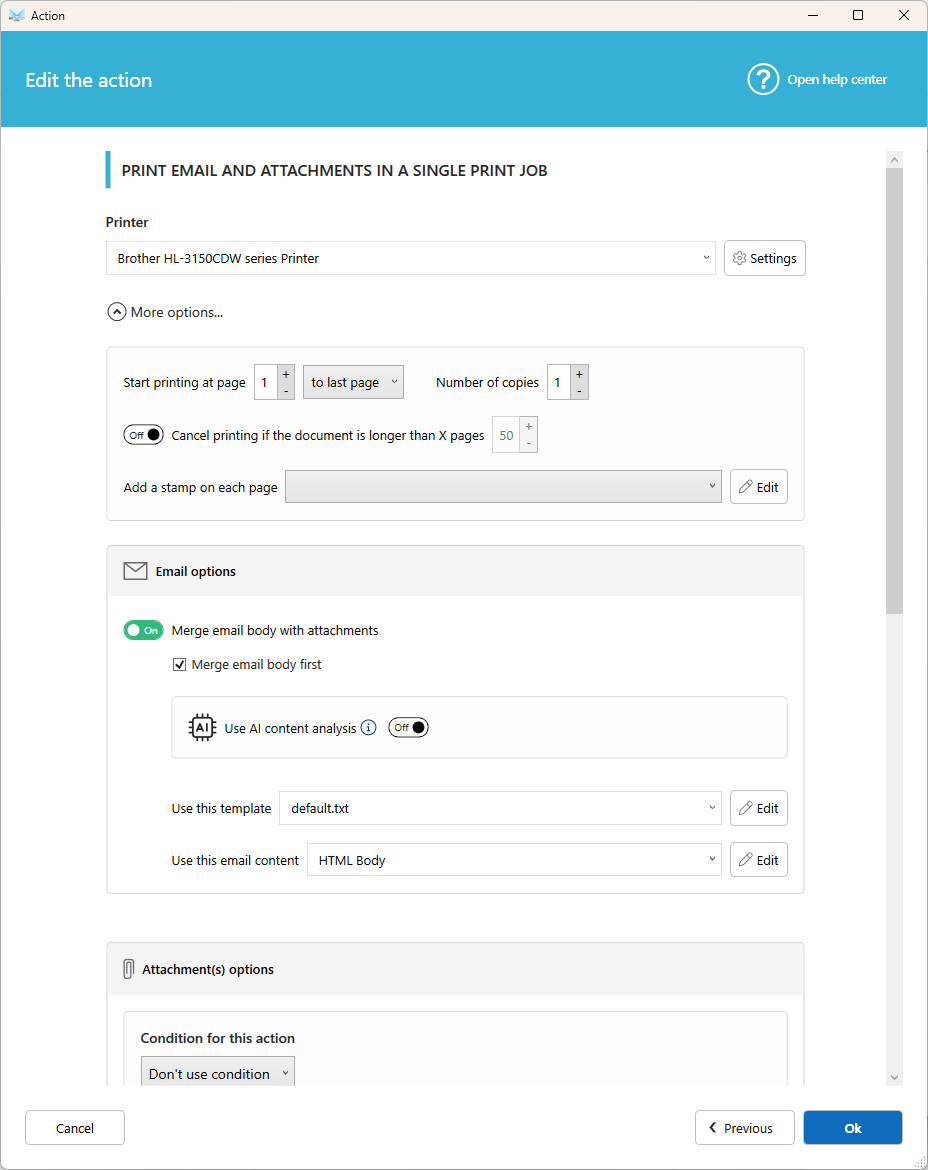
Printer settings
On this printer
Select one of your installed printers. Click Settings to adjust margins, paper tray, duplex mode, and more.
Print range
Choose the page range to print and the number of copies.
Cancel printing if the document is longer than x pages
Avoid printing very large documents by mistake. If the merged job exceeds the number of pages you set, nothing is printed.
Add a stamp
Add a stamp or page numbers on each page, for example Received on with the date, or Shipped. Create your stamps in Tools, then Stamp templates.
Email options
Merge email body with attachment(s)
Turn this on to include the email body in the print job. Turn it off to print only the attachments.
Merge email body first
Print the email before the attachments. Turn it off to print it after.
Use AI content analysis
Let AI process the email content and make the result available in the %EMAIL_BODY% field. Learn more.
With template
Choose the visual template used to display the email body. You can add or edit templates from here.
Use these email data
By default, the full HTML content of the email is used. Select another source, or a data extractor template, to print only a specific part of the email (see Extract data from an email).
Attachment options
Condition (optional)
Print only the attachments you need, based on their file name or content. For example, set Contains .pdf to print PDF files only.
Use AI content analysis
Let AI process the content of the attachments and print the result. Learn more.
Protected files
If you receive password-protected documents (Word, PDF, Office, and more), enter the possible passwords, one per line. Each one is tried until the file opens.
File type options
Each file type (PDF, Excel, Word, image, and more) has its own options. Follow the instructions on screen.
Related articles
- Action: Print email body
- Action: Print attachment(s)
- Extract data from an email
Was this article helpful?
That’s Great!
Thank you for your feedback
Sorry! We couldn't be helpful
Thank you for your feedback
Feedback sent
We appreciate your effort and will try to fix the article